
Category: Subcategories
With "Subcategories" you can automatically display all subcategories of the current category at the top of the category page.
In the example below, we see how the "Clothing" category displays direct subcategories. If we had gone further into the "Women" category, we would have seen its subcategories.
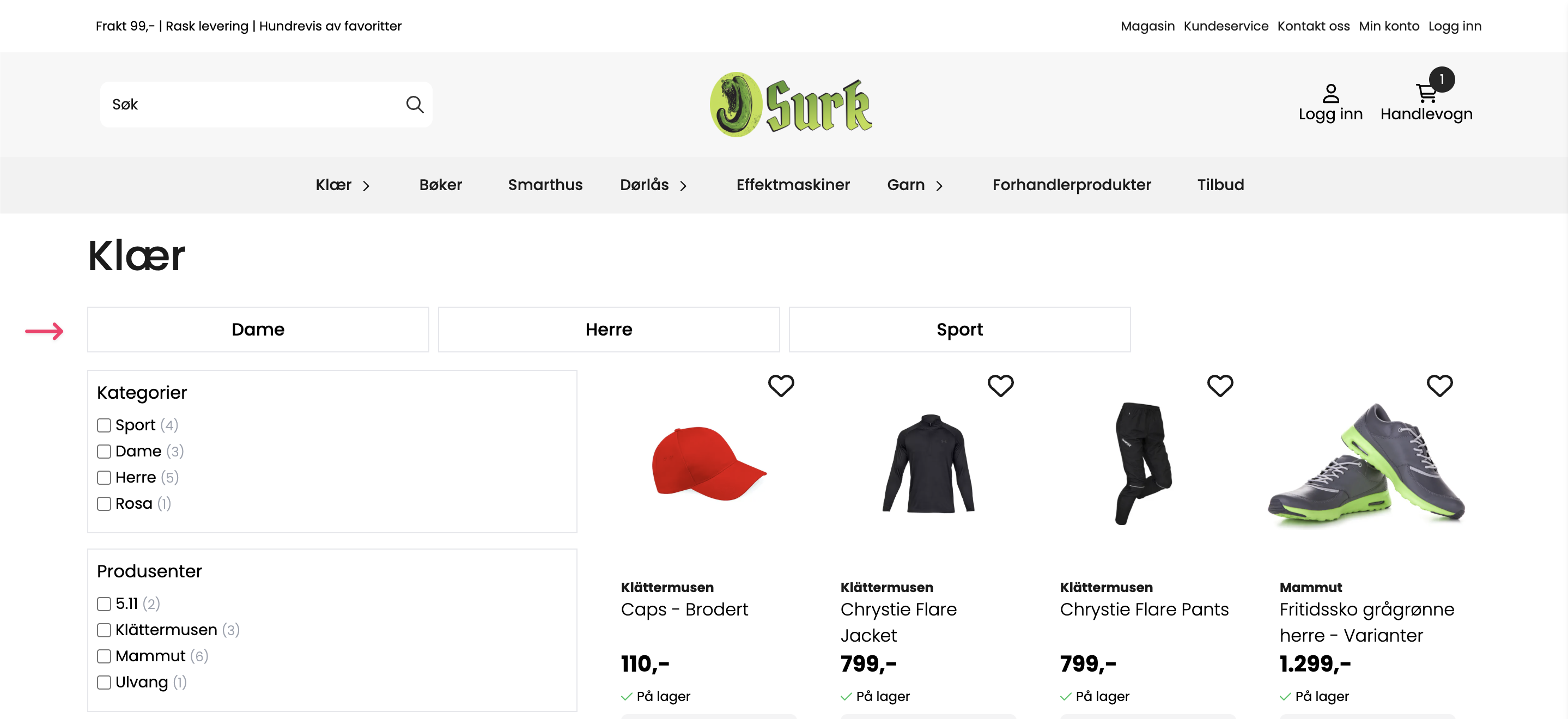
How to add the block
- Navigate to the design builder
- Open the template for "Category page"
- In the "Product section (Productgrid)" section, add the block "Subcategories
Ensure that the "Subcategories" block is placed above the "Products in grid" block. Alternatively, you can have a separate "Product section" that only contains "Subcategories". That is, one section containing subcategories and one section containing the products.
If the subcategories are not displayed in the design builder, try the following:
- Save the design and reload the design builder.
- Ensure that you are previewing a category that has subcategories.
- In stores without a filter: check that "Show subcategories on main category page" is active under
Configuration > Categoryin the control panel. In stores with a filter, this setting is not required — the block then retrieves the subcategories directly from the category tree.
Subcategories together with filter
The subcategory block and the filter do not exclude each other. A category page can display subcategories and a filter simultaneously, both when the filter is placed as a horizontal row above the products and when it is in a column next to the product list.
In a store with a filter, products are indexed by their own category and on the categories above. A main category therefore lists the products from its subcategories, the filter has something to filter by, and the subcategory block is also displayed. This requires no extension.
The filter's position is selected in the design builder's general category settings: "horizontal" provides a row above the products, "sidebar" provides a column next to the product list. The same settings group also controls the width of the filter column, filter style (open or accordion), button to hide the filter, as well as the placement of sorting and selected filters.
Customize the appearance of subcategories
After the block has been added, you can make simple changes to its appearance.
Click the pencil button to edit the settings. From here you can change font size, font weight, as well as font color, background, and add a border. As with all other blocks, you can also change column layout, margin, padding, and add your own CSS classes.
Display type
Choose how the subcategories should be displayed through the setting column type
Grid
The subcategories are displayed in a grid. You can decide how many columns the grid should be divided into (1-8). If there are more subcategories than columns, an extra row will automatically be added.

Flex
With "flex" selected, all categories will be placed in a horizontal row. Each category will automatically adjust to the category name or image to make the best use of space. When a row is full, it will automatically start on the next row.
Display type flex has several settings:
- Carousel: If active, the subcategories always will be displayed in a scrollable row. With this active, you will also have the option to show/hide navigation arrows. In a carousel, each subcategory will take 25% of the width, meaning a maximum of 4 subcategories will be displayed simultaneously.
- Alignment: Choose whether categories should be placed to the left, center, or right by default.
- Set image height: Adjust the height of category images.
- Fill space: Each category will expand to use as much space as available.
- Maximum category width: Set a width, in pixels, that the category should never exceed.
- Spacing control: Spacing between each subcategory.

Adding category images
If you wish to display images on the subcategories, this will happen automatically when a category has an image. Note that the image will automatically take the full width of the subcategory box. Some adjustment of the category image may be necessary.
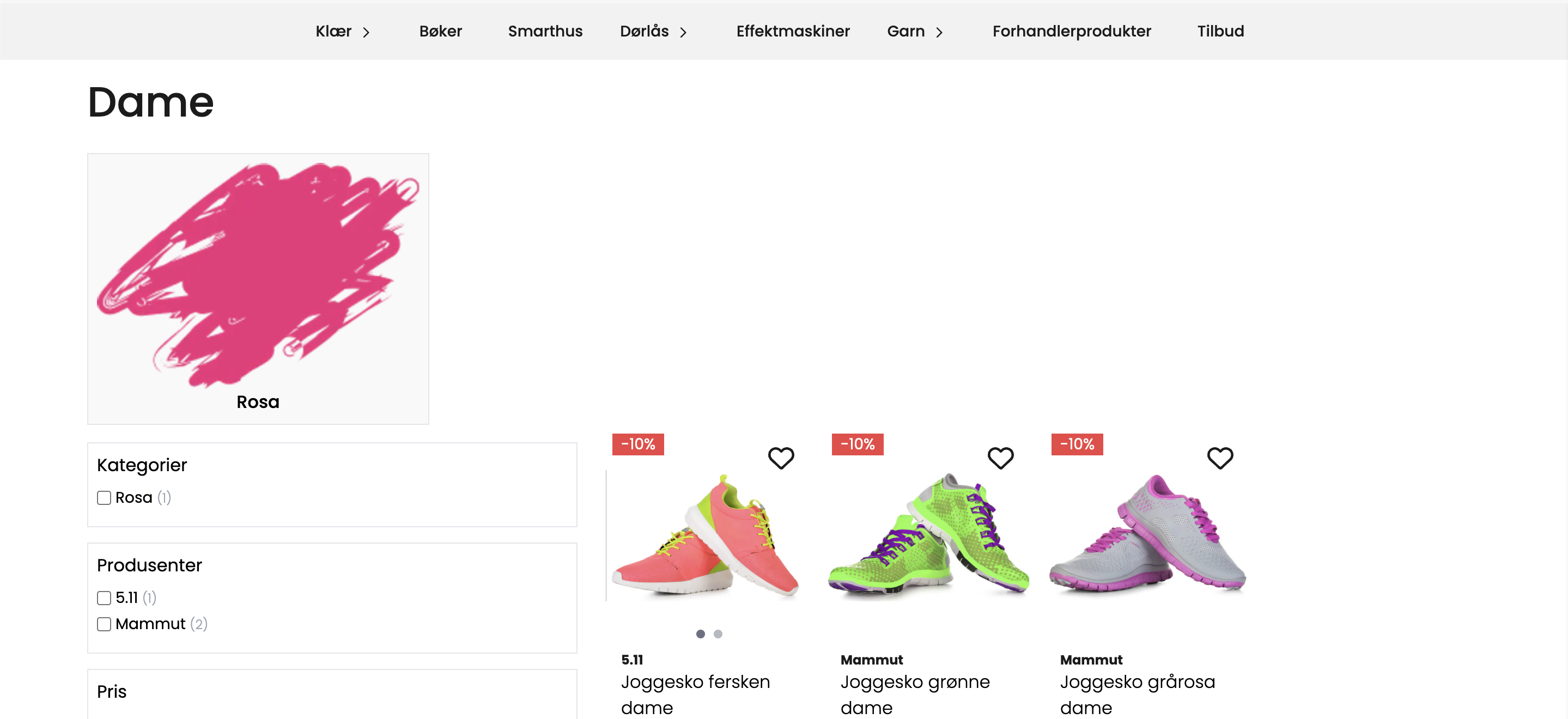
How to add category images:
- In your control panel, navigate to
Products > Products - In the left menu, find the category you want to add an image to, and click the pencil button to edit.
- Under "Settings" in the window that opens, the image can be uploaded.
Allow products in category with subcategory
Whether a main category should display products in addition to its subcategories, the procedure depends on whether the store uses filters.
Stores with filters: this works without extensions. Products are also indexed in the categories above their own, so the main category automatically displays products from its subcategories — along with the subcategory block and filter.
Stores without filters: by default, you can only have products in categories that do not have subcategories. That is, you must choose one or the other. If both are to be displayed in one and the same category, the extension "Allow products in main categories" must be activated. The extension also allows you to link products directly to a category that has subcategories.
Configure extensions by going to Extensions > Your extensions