
Email Templates: Template Variables
Template Variables
Variables are the shortcuts you insert into an email template, written in square brackets like [STORE_NAME], or [ORDER_NUMBER], and which are replaced with real values when the email is sent. You write the template once; each customer gets their own details filled in.
How they work
You type a variable into the template (or insert it from the menu), and when the store sends the email, each of them is replaced with the actual value for that customer and that order. This is how [CODE], becomes the customer's real login code, [TOTAL_INC_VAT], becomes their actual total amount, and so on.
In the editor's preview, the variables show example values, so you get an impression of what the finished email will look like. The real values only appear in the email that lands in the customer's inbox.
Insert a variable
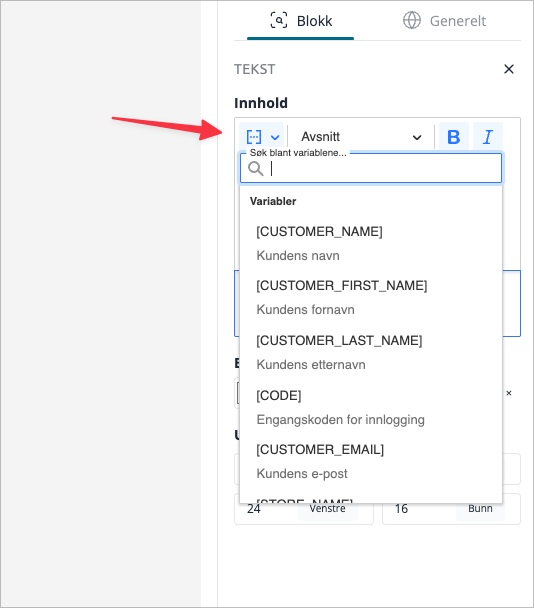
Open the template in the editor and use the button Use variable (the menu Template Variables). Search for the one you want and click on it to insert it into the block you are editing. You can also type the bracketed name manually if you know it.
Which variables are available depends on the template. An order confirmation offers order and amount variables; the one-time login code email offers the login code; account emails offer customer details. The menu only shows what the current template can actually fill in, so you cannot accidentally insert one that doesn't work.
Amount variables for orders
Order confirmations (the standard confirmation, the pickup variant, and the B2B variant) can display the monetary amounts in the order. Each amount is available in two versions, one with VAT and one without, so you can display what suits your customers:
Variable | Shows |
|---|---|
[TOTAL_INC_VAT] | The total sum for the order, incl. VAT. |
[TOTAL_EX_VAT] | The total sum for the order, excl. VAT. |
[SUBTOTAL_INC_VAT] | The subtotal for the products, incl. VAT. |
[SUBTOTAL_EX_VAT] | The subtotal for the products, excl. VAT. |
[SHIPPING_INC_VAT] | The shipping cost, incl. VAT. |
[SHIPPING_EX_VAT] | The shipping cost, excl. VAT. |
[VAT] | Total VAT for the entire order. |
A couple of things worth knowing:
- Amounts follow the order's currency. Each value is displayed in the currency the customer actually paid in, and is formatted in the same way as in the checkout, so that the email matches what they saw when they ordered.
- [VAT] covers the entire order. It is the total VAT across products, shipping, and any fees — the same VAT amount displayed in the checkout. (If you've seen this number look a bit low in older emails, it has been corrected; it now includes shipping VAT, not just product VAT.)
- Choose with or without VAT according to your target audience. Stores selling to consumers usually show amounts incl. VAT; stores selling to businesses often prefer excl. VAT. The B2B confirmation template therefore uses the versions without VAT by default.
Avoid [SUBTOTAL]
There is an older variable, [SUBTOTAL], which is now marked as deprecated in the menu. Despite its name, it does not show the product subtotal — it shows the total sum incl. VAT, an old quirk we have only kept so that old templates do not stop working. For anything new, you should use [TOTAL_INC_VAT], if you want the total sum, or [SUBTOTAL_INC_VAT][SUBTOTAL_EX_VAT], if you want the product subtotal.
Variables found everywhere
Most templates, regardless of type, offer these basics:
Variable | Becomes |
|---|---|
[CUSTOMER_NAME] (plus first name / last name) | Customer's name, when known. |
[STORE_NAME] | Your store name. |
[STORE_LOGO] | Your store's logo image. |
[URL] | A link to your store. |
Store contact details | Address, postal code, organization number, and email. |
Order confirmations add order-specific variables at the top — order number, date, payment and shipping method, product list, tracking, and the amounts above. The one-time code email adds [CODE]. The menu is the reliable list for the template you are editing.
Tips
- Let the menu be your guide. It only lists variables that template can fill, so if something isn't there, that template cannot deliver it.
- Check the preview. The editor's preview inserts example values, which is the fastest way to confirm you used the correct variable before publishing.
- Customize the VAT display for your customers. Consumer stores rely on amounts including VAT; business-oriented confirmations usually show excluding VAT.
- Do not resort to [SUBTOTAL] in new templates. It is a total sum, not a subtotal. Use the clearly named variables instead.
All variables
The full set of variables the editor can insert, and which templates offer each of them. The menu Use variable inside a template is always the definitive list for that specific template — this is the cross-template reference for what exists. "Most templates" means all except the two specialized order emails (Order Files and Partial Delivery).
Show the full variable list
Customer and store basics
| Variable | What it inserts | Available in |
|---|---|---|
| [CUSTOMER_NAME] | Customer's name | All templates |
| [CUSTOMER_FIRST_NAME] | Customer's first name | All templates |
| [CUSTOMER_LAST_NAME] | Customer's last name | All templates |
| [CUSTOMER_EMAIL] | Customer's email address | Most templates |
| [STORE_NAME] | Your store name | Most templates |
| [STORE_LOGO] | Your store logo | All templates |
| [STORE_NAME_ADDRESS] | Your store's address | Most templates |
| [STORE_CITY] | Your store's city | Most templates |
| [REGISTRATION_NUMBER] | Your organisation number | Most templates |
| [EMAIL] | Your store's email address | Most templates |
| [URL] | Link to your store | Most templates |
Account and login
| Variable | What it inserts | Available in |
|---|---|---|
| [CODE] | The one-time login code | One-Time Password |
| [CUSTOMER_PASSWORD] | Customer's password | New Customer, Forgotten Password |
| [CUSTOMER_IP_ADDRESS] | Customer's IP address | Forgotten Password |
Order details
| Variable | What it inserts | Available in |
|---|---|---|
| [ORDER_NUMBER] | Order number | Order confirmation, Order status, Order Files, Partial Delivery |
| [ORDER] | Order number (alternate) | Partial Delivery |
| [ORDER_URL] | Link to the order in the customer's account | Order confirmation |
| [DATE] | Order date | Order confirmation |
| [ORDER_DATE] | Order date | Order status |
| [STATUS] | Order status | Order status, Partial Delivery |
| [STORE_NAME_PHONE] | Your store's phone number | Order confirmation |
| [STORE_PHONE] | Your store's phone number | Partial Delivery |
| [STORE_EMAIL] | Your store's email address | Partial Delivery |
| [CUSTOMER_PHONE] | Customer's phone | Order confirmation, Order status |
| [CUSTOMER_DELIVERY_ADDRESS] | Customer's delivery address | Order confirmation, Order status |
| [CUSTOMER_BILLING_ADDRESS] | Customer's invoice address | Order confirmation |
| [CUSTOMER_DELIVERY_DISTRICT] | Customer's delivery district | Order confirmation |
| [CUSTOMER_BIRTH_DATE] | Customer's date of birth | Order status |
| [PAYMENT_METHOD] | Payment method | Order confirmation |
| [SHIPPING_METHOD] | Shipping method | Order confirmation |
| [PRODUCTS_ORDERED] | The list of ordered products | Order confirmation |
| [PRODUCTS_ORDERED_TR] | Ordered products as table rows | Order confirmation |
| [PRODUCT_NAME] | Ordered product name | Partial Delivery |
| [PRODUCT_QUANTITY] | Ordered product quantity | Partial Delivery |
| [DATE_AVAILABLE] | Expected delivery date | Partial Delivery |
| [CURRENCY] | The order's currency code (e.g. NOK) | Order confirmation |
| [COMMENT] | Comment on the order | Order confirmation, Order status |
| [REFERENCE] | Order reference | Order confirmation |
| [GIFT_CARD] | Gift card details | Order confirmation |
| [DIGITAL_PRODUCT] | Digital product download links | Order confirmation |
| [ORDER_BONUS_POINTS] | Bonus points earned on the order | Order confirmation |
| [ORDER_RECURRING_LINES] | Recurring order lines | Order confirmation |
| [ORDER_SHIPPING_COST] | Shipping cost (recurring orders) | Order confirmation |
| [FIXED_PAYMENT] | Fixed payment fee | Order confirmation |
| [ORDER_CONFIRMATION_PDF] | Order confirmation PDF attachment | Order confirmation |
| [ATTACHMENTS] | List of attachment download links | Order Files |
| [TIMESTAMP] | Unix epoch time | Order confirmation |
Order amounts
| Variable | What it inserts | Available in |
|---|---|---|
| [TOTAL_INC_VAT] | Order total, including VAT | Order confirmation |
| [TOTAL_EX_VAT] | Order total, excluding VAT | Order confirmation |
| [SUBTOTAL_INC_VAT] | Products subtotal, including VAT | Order confirmation |
| [SUBTOTAL_EX_VAT] | Products subtotal, excluding VAT | Order confirmation |
| [SHIPPING_INC_VAT] | Shipping cost, including VAT | Order confirmation |
| [SHIPPING_EX_VAT] | Shipping cost, excluding VAT | Order confirmation |
| [VAT] | Total VAT for the whole order | Order confirmation |
| [SHIPPING] | Shipping cost (sums all shipping lines) | Order confirmation |
| [SUBTOTAL] | Deprecated — returns the grand total incl. VAT. Use [TOTAL_INC_VAT]. | Order confirmation |
Delivery updates and tracking
| Variable | What it inserts | Available in |
|---|---|---|
| [TRACKING_NUMBER] | Tracking number with a full clickable link | Order status |
| [TRACKING_NUMBER_RAW] | Tracking number (number only) | Order status |
| [TRACKING_NUMBER_URL] | Tracking URL only | Order status |
| [TRACKING_NUMBER_NO] | Tracking number (number only) | Order status |
Conditional sections (advanced)
These don't insert a value. They wrap part of your template so it only shows when the condition is true — for example, only showing a comment block when the order actually has a comment.
| Variable | Shows its contents when… | Available in |
|---|---|---|
| [COMMENT] | The order has a comment | Order confirmation, Order status |
| [REFERENCE] | The order has a reference | Order confirmation |
| [GIFT_CARD] | A gift card was used | Order confirmation |
| [DIGITAL_PRODUCT] | The order has digital products | Order confirmation |
| [ORDER_BONUS_POINTS] | The order earned bonus points | Order confirmation |
| [ORDER_RECURRING] | The order is a recurring order | Order confirmation |
| [INVOICE] | The order is paid by invoice | Order confirmation, Order status |
| [CANCELLATION] | A Right to regret form applies | Order confirmation, Order status |
| [INVOICE_CANCELLATION] | Invoice and Right to regret both apply | Order confirmation, Order status |
| [REMINDER] | The email is a reminder | Order confirmation, Order status |
| [TRACKING_NUMBER] | The order has a tracking number | Order status |
| [LIMITED] | Downloads are limited | Order Files |
| [ORDER_LOOP] | Repeats its contents once per ordered product | Partial Delivery |
| [PRODUCT_TEMPLATE] | Marks the layout used for each product in the loop | Partial Delivery |
| [DATE_AVAILABLE] | The product has an expected delivery date | Partial Delivery |