
Setting offer price for many products
The bulk editor applies the same discount to many products in one operation, and shows you the price each individual product will have before you save. It calculates the prices per product, so you can apply rounding and see which ones fall below your margin limit.
You get here from Adjust offers: check the products, and select Set sale price in the action bar.
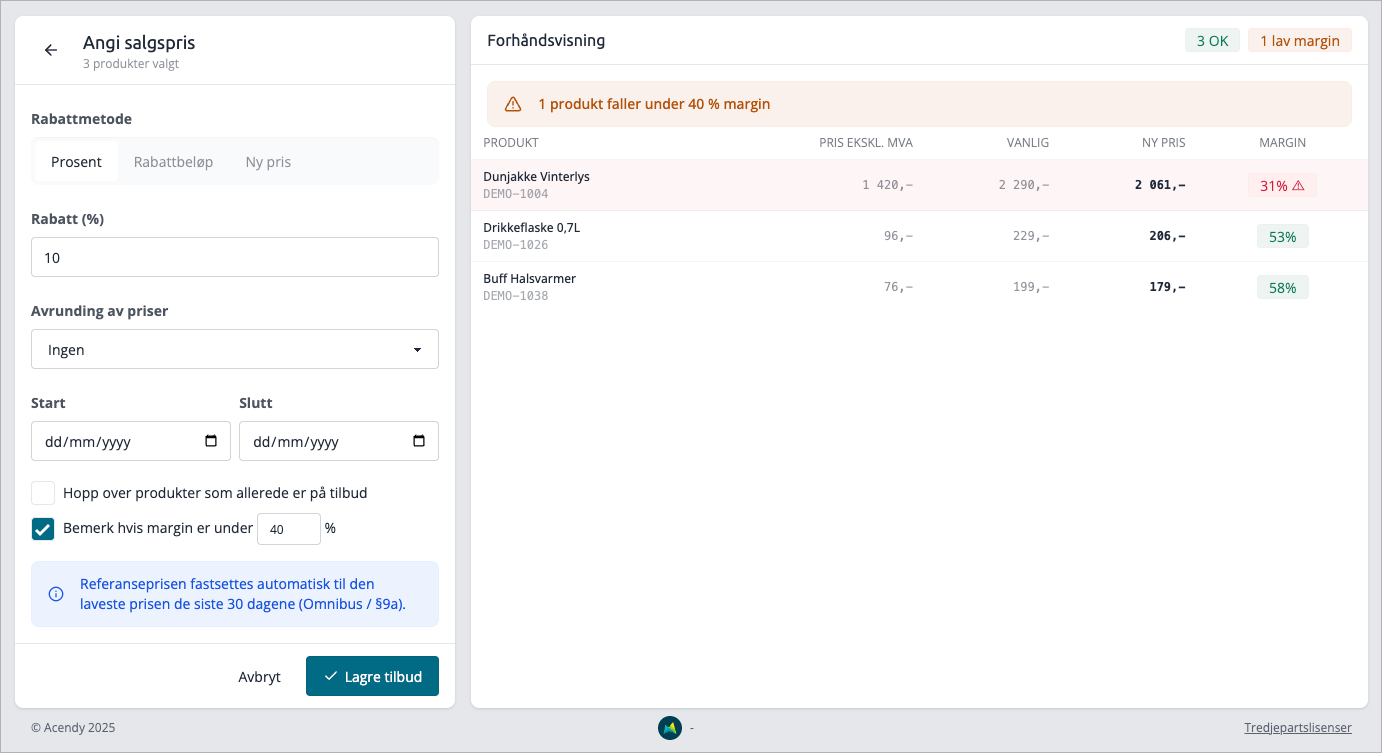
How to do it
- In Adjust offers, filter and check the products. If you want to include all results, use the checkbox at the top — it includes products on pages you haven't scrolled to.
- Click Set sale priceSelect
- Discount method and enter the value.Optionally select
- Price roundingSet Start
- and End if the offer should be date-controlled.Review the preview on the right.Click
- Save offer
The prices in the preview are the prices that will be saved. Nothing is recalculated along the way.
The three discount methods
Method | You enter | Result |
|---|---|---|
Percentage | Discount (%) | Each product receives the same percentage off its own normal price |
Discount amount | Amount (kr) | The same amount in krone is deducted from each product |
New price | Amount (kr) | All products will have the same price |
Discount amount is worth a moment's thought for a mixed selection: 200 kr off a product priced at 249 kr is almost the entire price, while it's a small amount for one priced at 4999 kr. The preview shows this immediately.
Rounding
Percentage and fixed monetary amounts rarely result in neat prices. Rounding fixes that:
Options | Example: 412.80 becomes |
|---|---|
None | 412.80 |
Nearest .99 | 399.99 |
Nearest .90 | 409.90 |
Whole number |
.99 and .90 always rounds down to the nearest such price point, so the rounding never makes the offer worse for the customer than what you entered.
Start and end
- If Start is empty or today, the offer goes live immediately.
- If Start is in the future, the offer will be ready and activate itself on that day. The product will remain inactive until then.
- End is the last day the offer is valid — it expires at the end of that day.
- If End is empty, the offer runs until you stop it.
More about how planning works in Planning offers and the timeline
The safeguards
Skip products that are already on offer leaves products that already have a sale price untouched. Useful when you want to offer a discount to the rest of the category without overwriting the offers you set last week. The skipped products are counted in the label «N skipped» above the preview.
Note if margin is below N marks products that fall below the limit you set: the row turns red, the margin indicator gets a warning symbol, and a summary appears above the table. The limit stops nothing — it just makes you see it. If you still want those products to receive the offer, save as normal.
Products locked by an active campaign are skipped regardless of what you have checked.
The preview
The table shows Product, Price excl. VAT (purchase price), Regular (normal price), New price, and Margin per product. Above it are the counters: how many receive the new price, how many fall below the margin limit, and how many are skipped.
If you have selected many products, the table shows the first 50 rows, with a line at the bottom indicating how many are actually updated. The counters and saving apply to all — only the table is truncated.
About the reference price
Under the controls, it states that the reference price is automatically set to the lowest price in the last 30 days. This is the "before" price the customer sees struck through, and it is calculated for you when the offer starts — you should not set it yourself. See Price history and reference price for what it means and how to document it.
Tips
- The selection you bring here is held for half an hour. You can safely refresh the page in the meantime, but if you stay too long, go back to "Adjust offer" and select again.
- All bulk edits are logged and can be fully reset. See Bulk editing log and resetIf you want to offer a discount for an entire brand or category, filter in "Adjust offer" first and use "select all matches". This way, you avoid checking row by row across multiple pages.