
Email: Dashboard
The Email Dashboard is the starting point for everything email-related in the control panel. From here you can see at a glance whether your sending setup is complete, check your inbox, and jump straight to the area you need.
Getting there
Go to Email in the sidebar. The dashboard is the first page you land on.
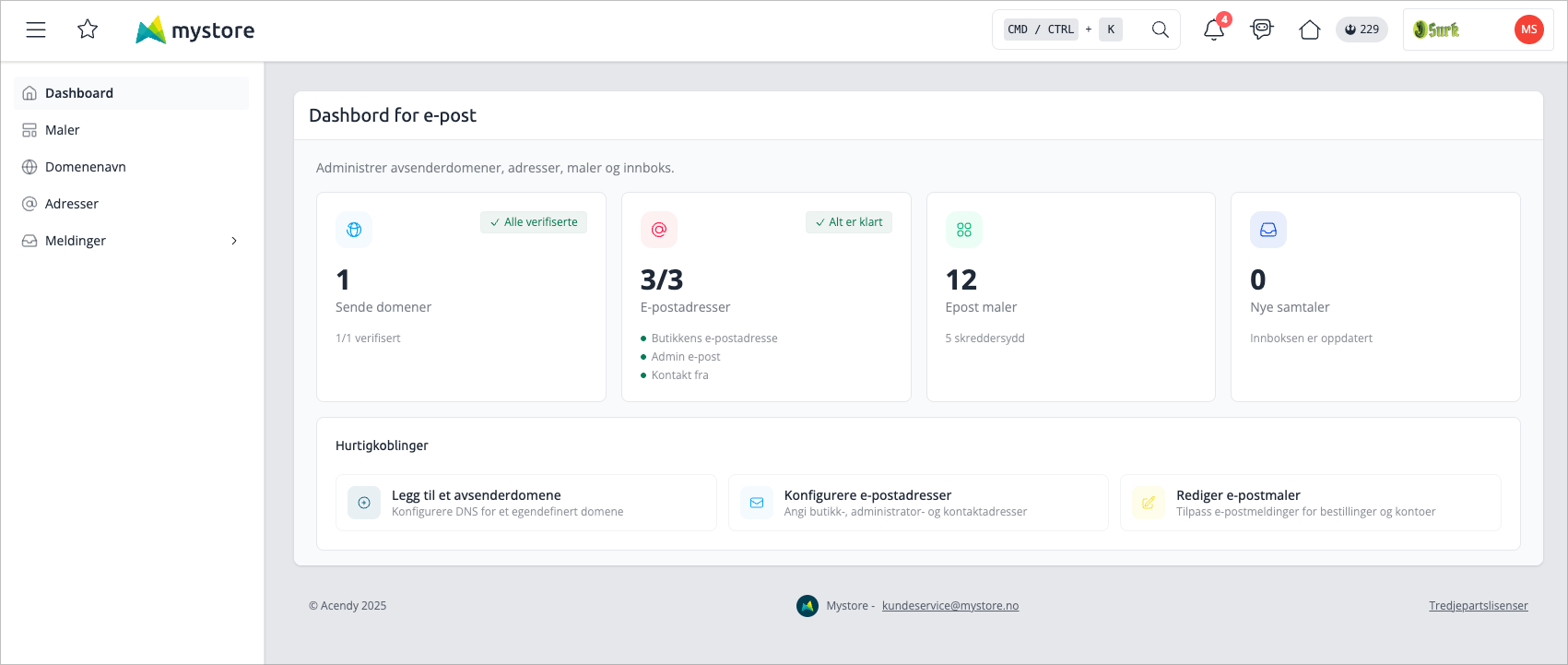
Status cards
The dashboard shows four summary cards across the top of the page. Each card links directly to the corresponding section.
Sending domains
Shows how many sending domains you've added, and how many of those are verified. If all domains are verified, the card shows a green "All verified" badge. If any are unverified, it shows a yellow "Pending" badge instead.
A verified domain means DNS records for that domain have been confirmed — without this, emails you send may not be delivered or may land in spam.
Email addresses
Shows how many of the three required email addresses are configured, out of a maximum of three. The three addresses are:
Address | Purpose |
|---|---|
Store email | Used in order confirmations, new account emails, and password resets |
Admin email | Used when sending newsletters and other emails from the admin panel |
Contact from | Used as the sender address for the contact form. If left empty, the store email is used instead |
The card shows a green "All set" badge when all three are configured, and a yellow "Pending" badge if any are missing. Small coloured dots next to each address name show which ones are set up and which still need attention.
Email templates
Shows the total number of email templates available for your store's primary language, along with how many of those have been customised. Templates you haven't edited yet use the default content.
Inbox
Shows the number of new customer conversations and how many messages are unread. This links to the inbox, where you can read and reply to messages customers have sent through the contact form.
Alerts
If your sending setup is incomplete, a warning appears at the top of the dashboard.
No sending domain configured — You haven't added any domain yet. Emails won't go out from a custom address until you add and verify one. Click Add domain to get started.
Sending domain not verified — You've added a domain, but the DNS records haven't been confirmed yet. Emails may not be delivered until verification is complete. Click Verify domain to check the status.
Quick links
Below the cards, the dashboard offers three shortcuts:
- Add a sending domain — Takes you straight to the domain setup page
- Configure email addresses — Opens the address configuration page
- Edit email templates — Goes to the list of email templates
These link to the same pages as the summary cards, just presented as actions rather than status indicators.
Tips
- Fix any alerts before doing other email setup — without a verified domain, other configuration changes won't have much effect on deliverability.
- The template count only includes templates for your store's primary language. If you run a multilingual store, check the templates page for other languages.