
Video in image carousel
What are product tags?
Product tags are small code snippets added at the product level to enable extra functionality.
Viktig!
Tagger må legges til av Mystore-support og kan ikke legges til manuelt av butikkens egne administratorer.
How to integrate videos
We use standardized tags to handle different types of video formats and sources. You can use one or more of these simultaneously:
- External video files: Use the tag
video_linkfor direct links to video files stored on services like Saas Video. - Video service (Landscape): Use the tag
embedded_videoto embed links to YouTube or Vimeo in standard widescreen format. - Video service (Portrait): Use the tag
embedded_portrait_videofor portrait videos (e.g., Shorts or TikTok format).
If you use multiple tags on the same product, the customer will see multiple play buttons on the first product image.
💡 Using Dropbox as a source?
You can, if desired, use Dropbox as a source for external video files:
- You must first create a shared link to the video.
- Then, modify the link by changing
?dl=0at the end to?raw=1. This results in a direct link to the file that you can use to embed it on most websites.
Display and Functionality
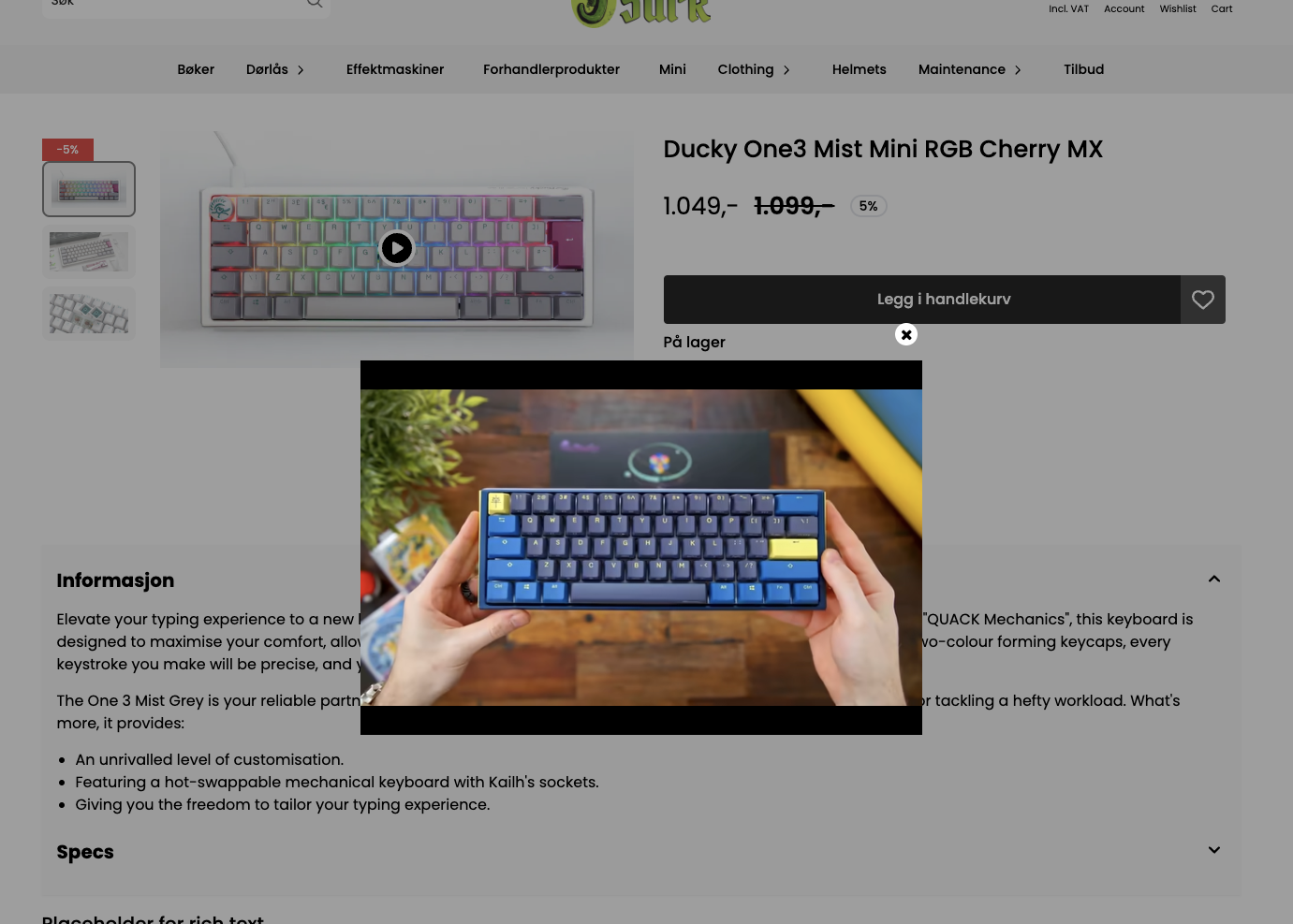
When a video link is added via a tag, a "Play" button will appear over the product image. When the customer clicks this, the video will open in a separate pop-up window for a focused viewing experience.
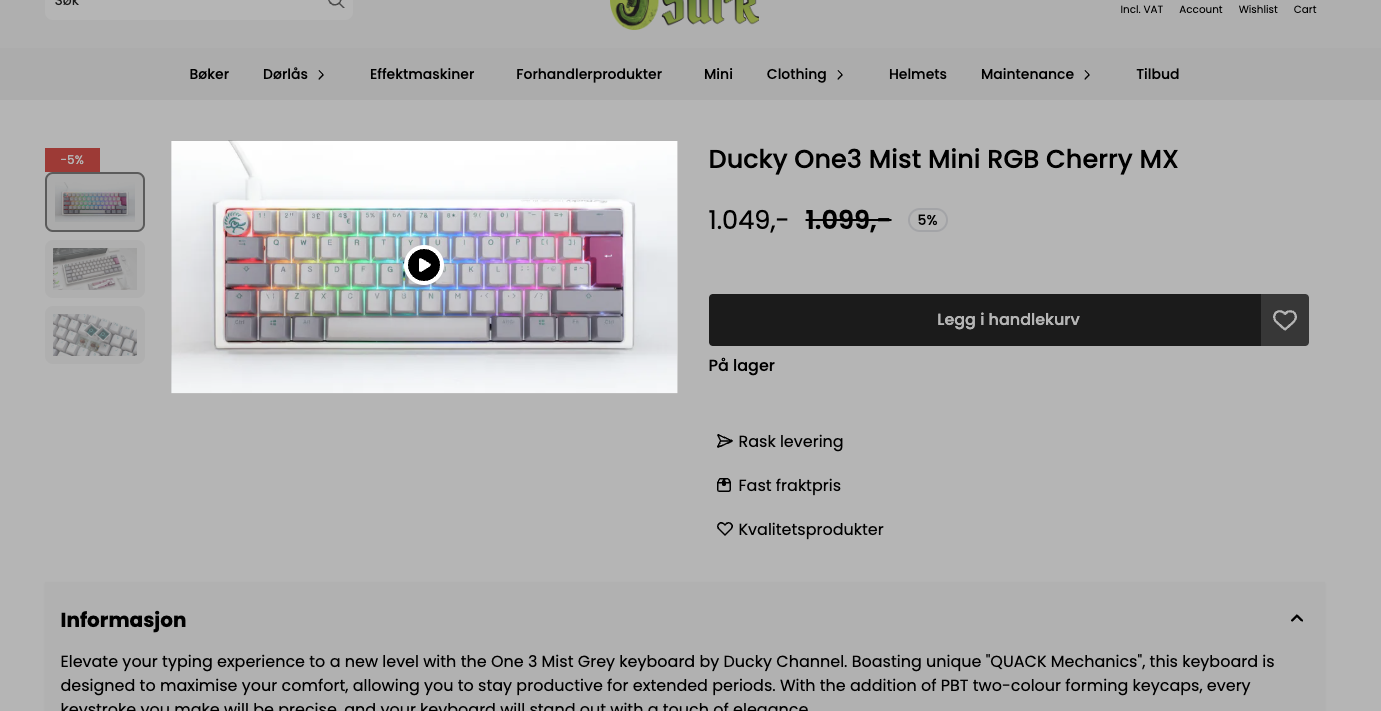
When playing, the video opens in a separate window.
Global settings
You can control how videos behave across the entire store. These settings can be found in the Design Builder under the section for Product image
- Autoplay: Choose whether the video should start immediately when the customer opens it.
- Mute sound: Decide if the video should start silently by default.
- Loop video: Choose whether the video should automatically restart from the beginning when it finishes playing.