
Planning offers and the timeline
An offer can be set up in advance and activate itself, and it automatically ends on the date you have set. The timeline shows the complete picture as a calendar, so you see what runs when.
Start and end date
Field | Empty | Filled |
|---|---|---|
Start | The offer goes live immediately | If the date is in the future, the offer is ready and activates itself on that day |
End | The offer runs until you stop it | The offer is valid for the entire day, and ends automatically after that |
You set the start in the Bulk editor ("Set sales price"). In "Adjust offer", you only set the end date — there, the offer goes live when you save.
A planned offer is listed as inactive until the start date. This is not an error: the price is ready, it's just not in use yet.
The end date is inclusive. If you set October 31st, the product is on offer for the entire October 31st and back to normal price on November 1st.
What happens automatically
The store reviews planned offers every minute and does two things: ends what has expired, and starts what is scheduled to begin. Termination happens first, so a product that is to move out of one offer and into another on the same day does not fall between two stools.
When an offer starts, the reference price is locked simultaneously — the "before" price is frozen as it was before the offer, and it is not recalculated while the offer is running.
Products controlled by an active campaign are skipped by the scheduling — the campaign owns its price, both start and end.
The Timeline
Products → Offer Center → Timeline shows one month at a time, with one row per product on offer and a bar spanning the offer period.
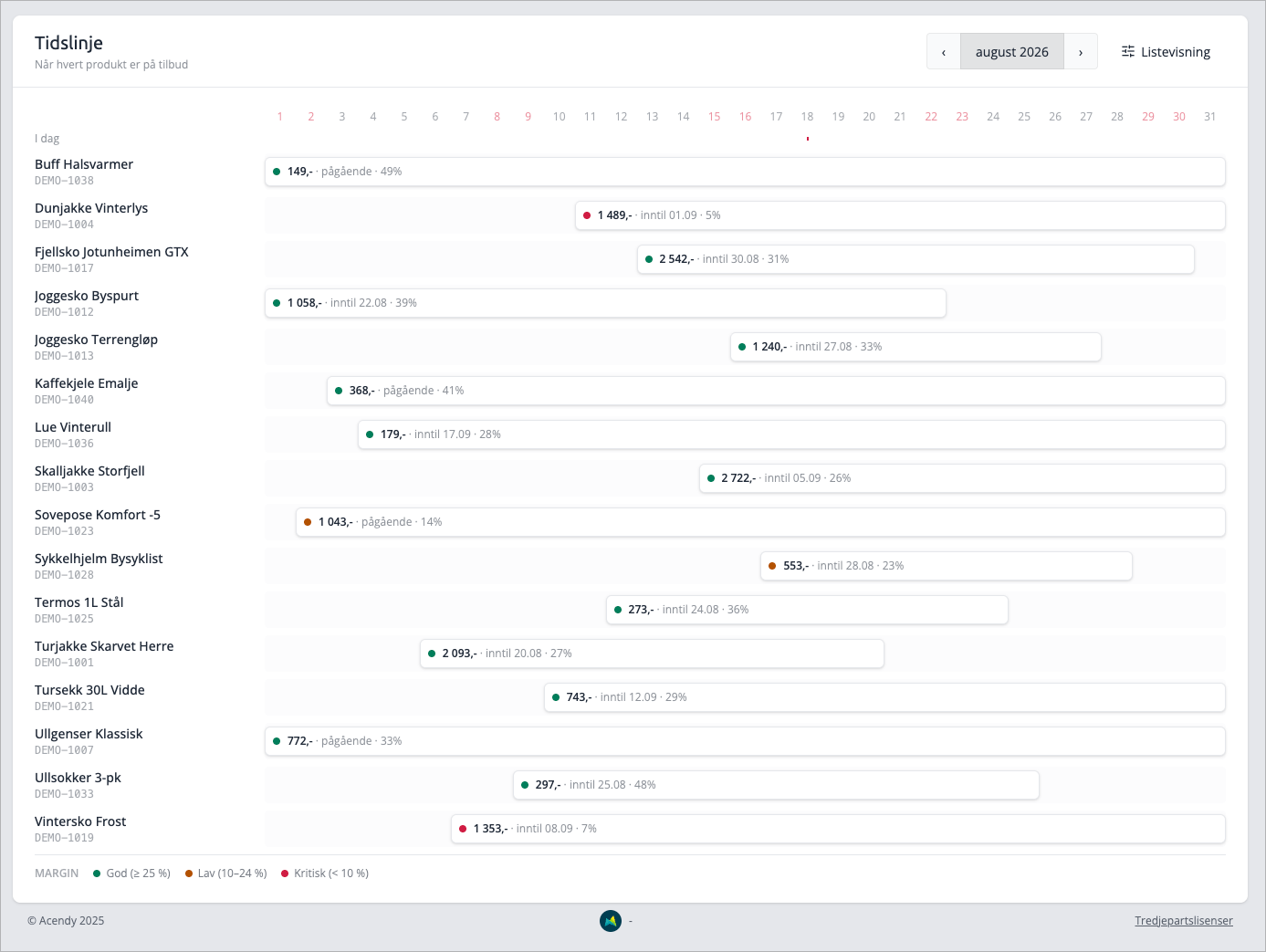
- Previous month and Next month scroll; Today takes you back to this month.
- Weekends are shaded, and if you are in the current month, today's date is marked.
- Each bar shows the sale price, when the offer ends — or "ongoing" if it has no end date — and the margin.
- The color dot on the bar indicates the margin: green is Good (25% or more), yellow is Low (10–24%), red is Critical (under 10%).
- Click a bar to open the price history for that product.
If an offer starts or ends outside the month you are viewing, the bar is clipped at the edge. It continues into the adjacent month.
The Timeline only shows active offers that actually provide a lower price than the normal price. Scheduled offers that have not yet started, and offers that are turned off, are not listed here — you can find them in "Adjust Offers".
How to plan an offer week
- In Adjust Offers, filter for the products you want to include — for example, one manufacturer, or a category with a margin over 40%.
- Check all results and select Set Sale PriceSet the discount, and set
- Start to the first day and End to the last day.Check the preview, paying special attention to the margin warning.
- Click
- Save OfferOpen Timeline
- and scroll to that week. The products should appear there as bars over the days you set.
Step 6 is worth doing. The timeline is the fastest way to see that you have hit the correct dates, and that you haven't placed the offer on top of something that is already running.
Tips
- If two offers on the same product are to succeed each other, let the first one end the day before the second one starts. A product can only have one sale price at a time.
- “Ongoing” on the timeline means that the offer has no end date. This is good for permanent price reductions, but worth reviewing now and then — they are easily forgotten.