
Setting up the layout with columns
The Design builder uses a two-level column system to control how content is arranged on a page. At the section level, you define a grid. At the block level, you control how much of that grid each individual block occupies. Together, these two settings give you precise layout control across desktop, tablet, and mobile.
How columns work
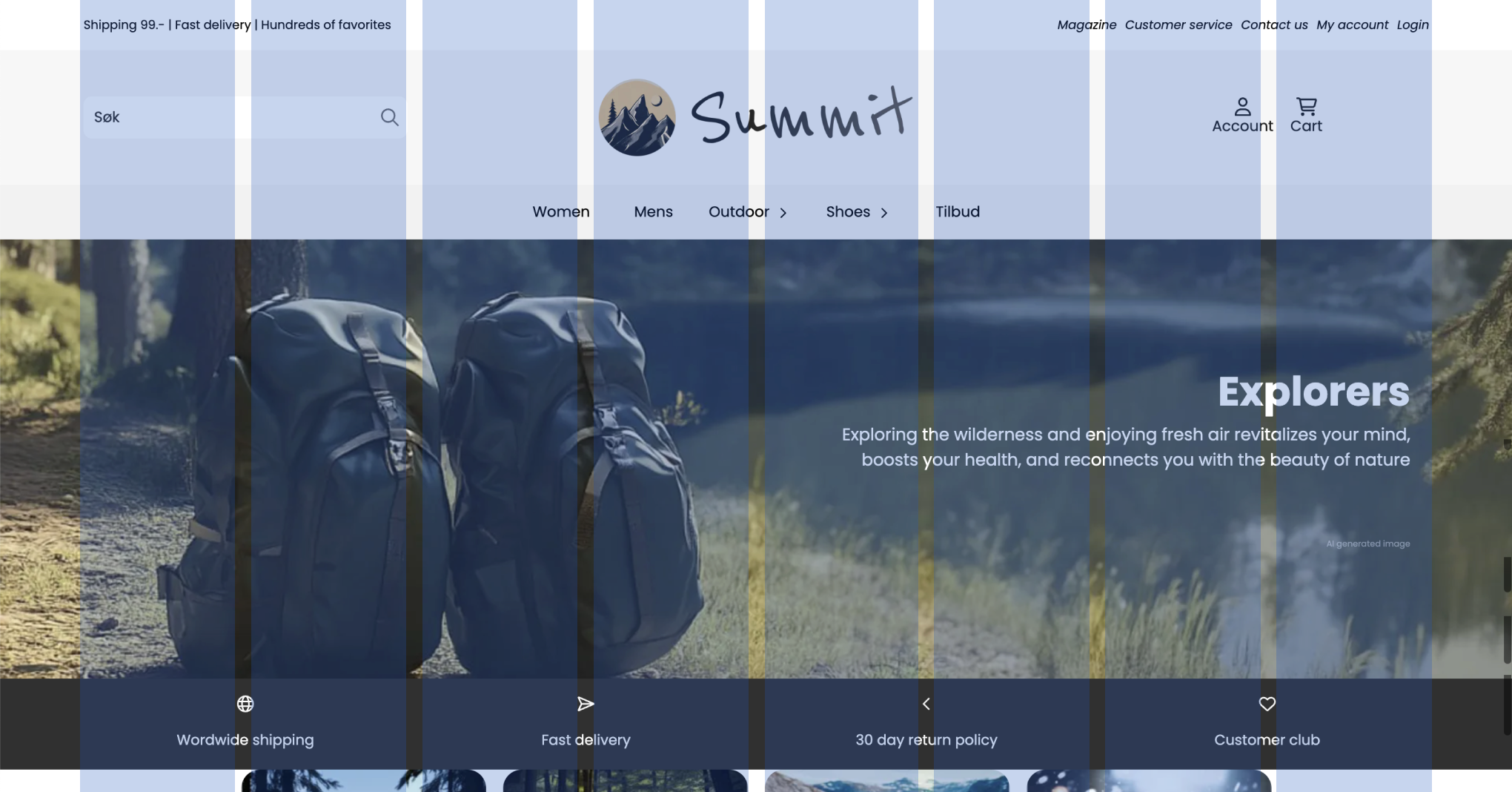
Every section that supports columns maintains a CSS grid. The grid is defined by how many columns it has — say, 4 on desktop. Each block inside that section declares how many of those columns it spans. A block spanning 2 out of 4 columns takes up half the width.
In short: section column count sets the total divisions, and block column width sets how wide each piece of content is within that grid.
Both settings are independent per breakpoint — you can have 4 columns on desktop, 2 on tablet, and 1 on mobile. The layout shifts automatically as the screen size changes.
Section column settings
Column settings on a section define the overall grid. You'll find them under the Layout group in the section's settings panel. They're only visible when Advanced mode is turned on.
Setting | What it controls | Range | Default |
|---|---|---|---|
Columns — desktop | Number of grid columns on large screens | 1–8 | 6 |
Columns — tablet | Number of grid columns on medium screens | 1–8 | 4 |
Columns — mobile | Number of grid columns on small screens | 1–8 | 2 |
Column gap | Spacing between columns | 0–4 | 4 |
The gap values follow the theme's spacing scale. 0 removes all space between columns; 4 gives the widest gap.
Which sections support column count
Column count settings appear across several section types, not only the dedicated Columns section:
- Columns — the main flexible layout section with full column control
- Footer — lets you arrange footer blocks (about us text, menus, newsletter signup) side by side
- Header builder — distributes header elements horizontally across the bar
- Blog — controls how many blog post cards sit in a row
- Contact us — arranges content blocks in a multi-column layout
Block column width settings
Each block inside a section has its own width setting that controls how many of the section's columns it spans.
Setting | What it controls | Range | Default |
|---|---|---|---|
Width — desktop | Column spans on large screens | 1–8 | 1 |
Width — tablet | Column spans on medium screens | 1–8 | 1 |
Width — mobile | Column spans on small screens | 1–8 | 1 |
A block set to width 1 occupies one column cell. In a 4-column section, a block set to width 2 takes up half the row. Two blocks at width 2 sit side by side and fill the entire row.
Width settings are available on most content blocks used inside the Columns section — text, image, icon box, image box, testimonial, typography, video, countdown, logos, and others.
Display mode: grid or carousel
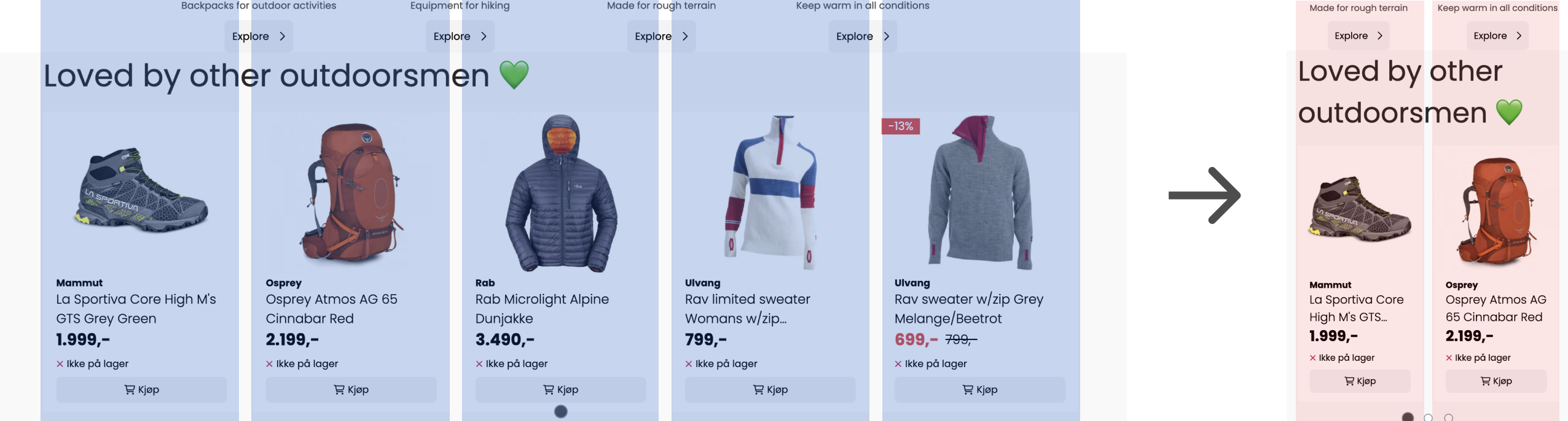
The Columns section has a Display mode setting that changes how the grid renders:
- Regular — a standard CSS grid. Blocks flow into the grid according to their column width settings.
- Carousel — blocks are arranged in a horizontally scrollable carousel. Column count and gap settings still apply to the carousel layout.
When Carousel is active, extra settings appear: autoplay, loop, show or hide pagination dots, show or hide arrows, arrow color, arrow size, and autoplay interval (in milliseconds).
Practical examples
A simple 3-column feature row
Set the section to 3 columns on desktop, 2 on tablet, 1 on mobile. Add three icon box blocks, each with width 1. They sit side by side on desktop, shift to 2+1 on tablet, and stack to a single column on mobile.
A 4-column section with one wide featured block
Set the section to 4 columns. Add one block with width 2 and two blocks with width 1 each. The wide block takes the left half; the two narrow blocks fill the right.
A footer with unequal columns
In a Footer section set to 4 columns, set an "About us" block to width 2 (half the footer). Add two menu blocks at width 1 each to fill the remaining half.
Tips
- Column settings are hidden until Advanced mode is enabled. Look for the toggle at the top of the section or block settings panel.
- If a block's width exceeds the section's column count, it spans the full row. A width-5 block in a 4-column section fills the entire width.
- The product slider and product purchase sections only expose block width settings — there's no column count setting, because the grid is managed automatically for those sections.