
Email Templates: Custom Email Template
A custom email template is an empty template you can install as many times as you want. Each copy gets its own trigger and its own rules that determine when it should be sent — so you can send a separate email to exactly the orders you choose.
When is a custom email template suitable?
The standard email templates cover common cases: order confirmation, order updated, order completed, and so on. A custom email template is for everything else — situations where you want to send something special to a specific group of orders.
Some examples:
- A separate message to customers who have chosen in-store pickup.
- An email only for orders in a specific customer group, for example, resellers.
- A follow-up for orders containing products from a specific category.
- A message for large orders above a certain amount.
You can install multiple custom templates simultaneously, each with its own trigger and its own rules.
How to get started
1. Install the template
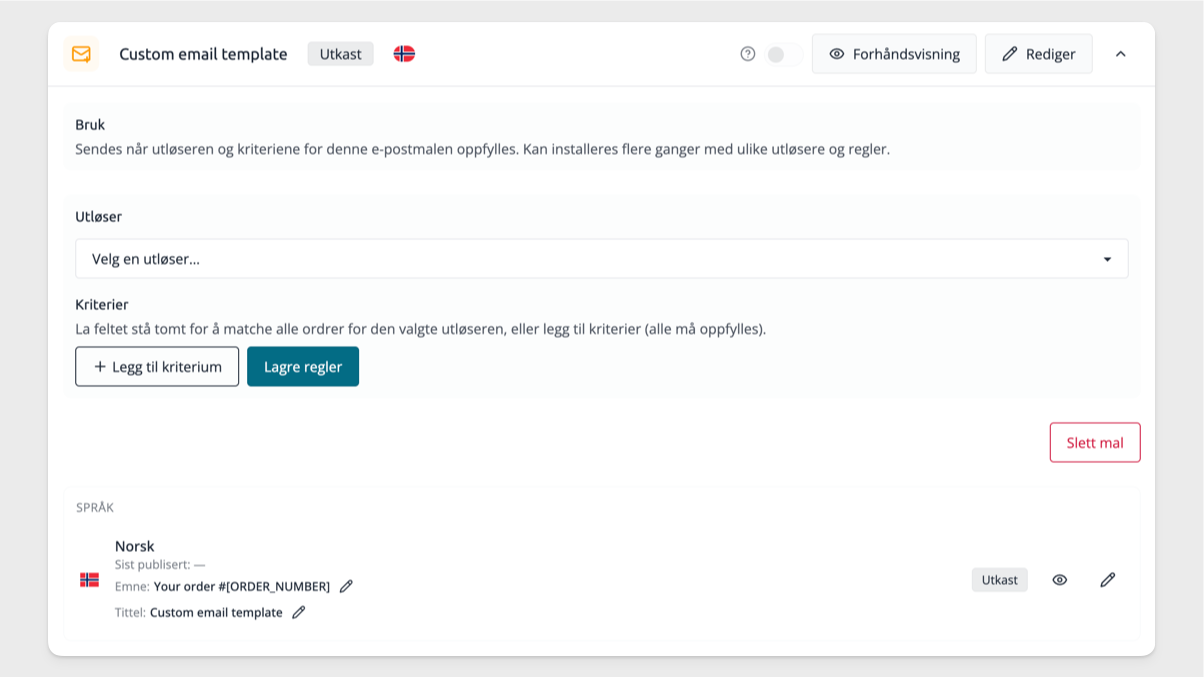
Open Admin → Email Templates, and click Add Template. Select Custom Email Template from the list and install it.
Custom email template can be installed multiple times — it doesn't disappear from the list after you've added one. Each time you install it, you get a new, empty template that you can set up independently of the others.
If your store does not have Plus, the template will appear in the list with a prompt to upgrade instead of an install button.
2. Name the template
The new template gets a default name. Click on the title in the template card to give it a name that describes its use — for example, "Pickup order – extra info" or "Resellers". The name is for internal use only and is not shown to the customer.
3. Select a trigger
Open the template card and select a trigger. The trigger determines which event can send the email. Currently available:
Trigger | Meaning |
|---|---|
Order updated | The email is considered when an order is changed after it has been placed — for example, when shipping is registered or order status is changed. |
You must select a trigger before you can turn on the template.
4. Add criteria (optional)
The criteria determine which orders the template applies to. Click Add criterion and select a type. You can add multiple criteria, but each type can only be used once.
If you leave the criteria empty, the template applies to all orders that hit the trigger.
5. Edit the content
The content is edited in the same way as all other email templates, using the email builder. See the articles «Email Templates: Editing a Template» and «Email Templates: Saving and Publishing Templates» for how to build and publish the content. A custom template has access to the same variables as «Order Updated» — order number, status, tracking, customer address, and so on.
6. Turn on the template
Use the on/off switch at the top of the template card, next to the Preview button. The switch is locked until you have selected a trigger. When it is on, the email is sent to orders that hit the trigger and the criteria.
Criteria
When you add multiple criteria, all must be met for an order to hit the template. Empty criteria are not counted.
The criteria come in two forms:
- Select values — you select one or more values from a list. The order hits if its value is one of those you have selected. For categories, it is sufficient that the order contains at least one product from one of the selected categories.
- Number range — you specify a lower and/or upper limit. The order hits when the number is within the limits. You can set only one of the limits if you wish.
Criterion | Form | Matches when |
|---|---|---|
Order status | Select values | The order has one of the selected statuses. |
Shipping method | Select values | The order uses one of the selected shipping methods. |
Payment method | Select values | The order is paid with one of the selected payment methods. |
Customer group | Select values | The customer on the order belongs to one of the selected customer groups. |
Categories | Select values | The order contains at least one product from one of the selected categories. |
Order value (incl. VAT) | Number range | The order total is within the limits. |
Order weight (grams) | Number range | The total weight of the products is within the limits. |
Number of products | Number range | The number of product lines is within the limits. |
Remember to click Save rules after you have changed the criteria. The button shows a marker in the corner when you have unsaved changes.
Which email is sent?
A custom template takes precedence over fixed emails. When an order is updated, custom templates are checked first. If one of them matches, it is sent — instead of the standard "Order updated" and instead of special templates like "Order completed" and "Order canceled".
If multiple custom templates match the same order, the oldest one (the one you installed first) is used. It is therefore advisable to make the criteria precise enough so that the templates do not overlap, if you want to control exactly which one is sent.
Only templates that are enabled and have a trigger are considered.
Delete a template
Click Delete template on the template card to remove a custom template. The rules for the template are removed at the same time. Deletion cannot be undone, but you can always install a new custom template and set it up again.
What happens if the subscription is downgraded?
Custom email templates require Plus. If you downgrade to a lower subscription, the custom templates will stop sending, and the cards will be locked. Nothing is deleted — both the templates and the rules are retained. If you upgrade to Plus again, everything will work as before without you having to set it up again.
Tips
- Give each template a clear name immediately. With multiple custom templates in the list, it quickly becomes confusing without good names.
- Start with the criteria before spending time on the content — then you'll quickly see if the template matches the orders you had in mind.
- If you want to test the setup, create a criterion that only matches a test order (for example, a specific customer group), so you don't affect real customers while building.