Block: Stock Status
The Stock Status block shows detailed stock status for a product — with optional icons, exact quantities, and custom messages for in stock and out of stock. It has more settings than the simpler Availability block, and supports both product-specific and store-wide stock messages.
How to add the block
- Open the design builderGo to the template for
- product pageIn the section "Product Purchase"
- , click the plus sign (+).Add the block
- "Stock Status"
General block settings
You can adjust font size, font weight, and color under the block's general settings. You can also change the margins to adjust the spacing to other blocks.
The Stock Status block will show info from "Advanced Inventory Management" if the store uses it.
Display of icons
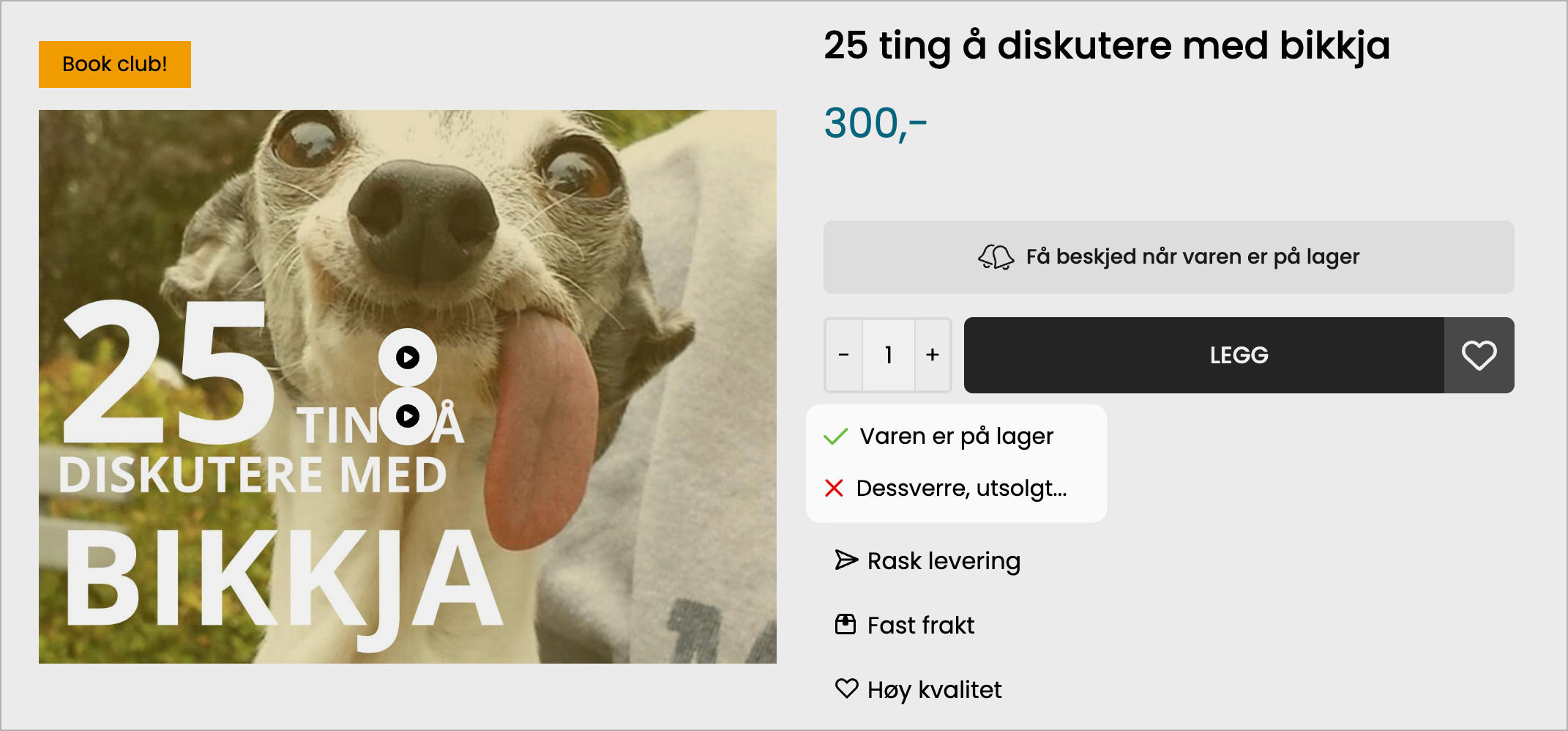
You have several options for displaying icons before stock text or quantity. The icon settings can be found under the tabs "Show In Stock Icons""In Stock Icon" and "Out of Stock Icon"
Show In Stock Icons
- Enable this feature to display icons in front of the stock text. You will immediately see how it looks in the design builder preview.
- Use "Icon Size" to adjust the size of the stock icon.
In stock icon / Out of stock icon
- Here you choose which icon should be displayed in front of the stock text, depending on whether the product is in stock or not.
- It is also possible to override the text displayed for products that are in stock or sold out.
Egendefinert tekst
Om man velger å legge til egendefinert tekst vil denne overstyre standard visning av lagerantall eller tekst. F.eks om man har valgt å vise det faktiske antallet på lager, ved bruk av egendefinert tekst vil kun teksten vises og ikke antallet.
Global stock message
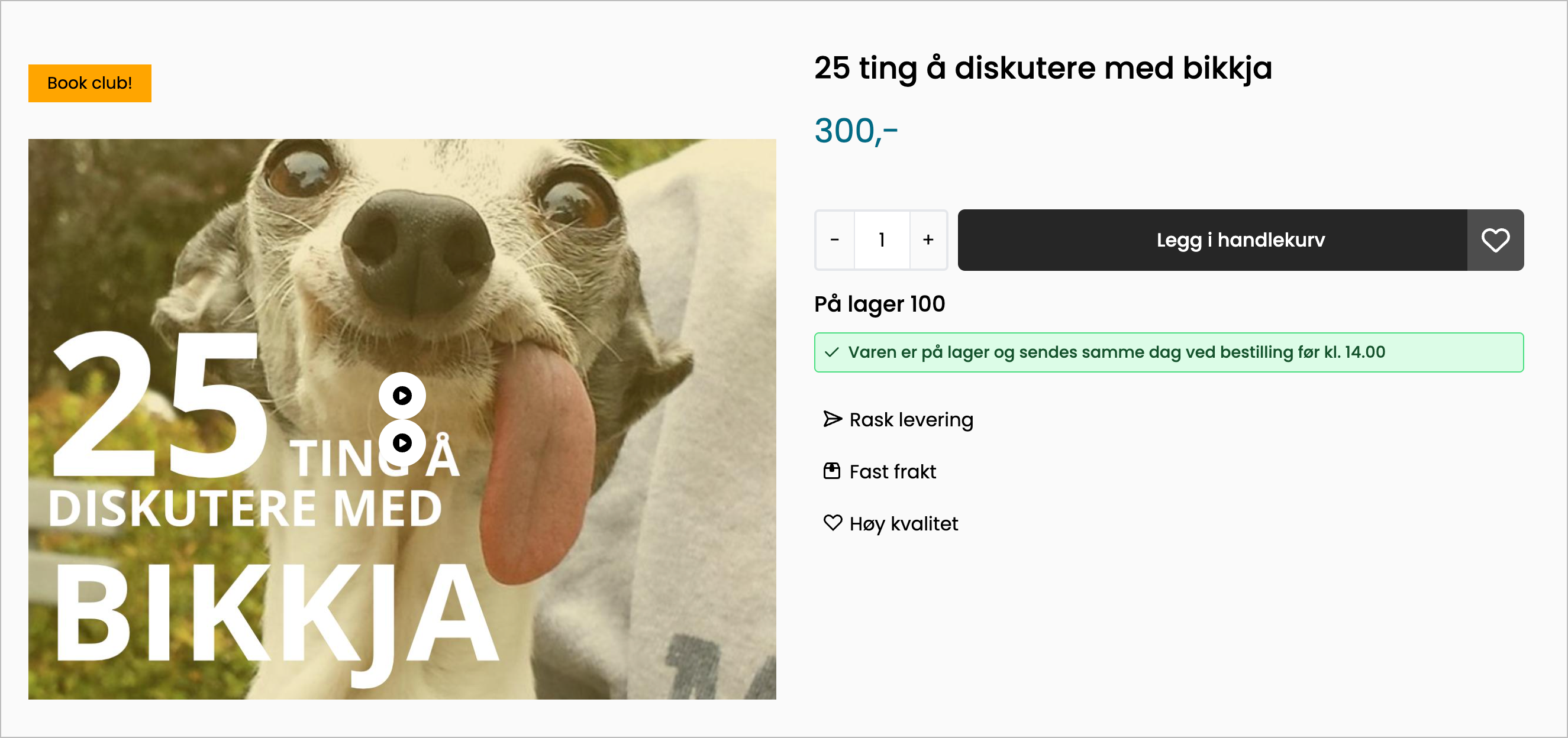
With global stock message, you can display a message/notification to the end customer about whether products are in stock or not.
In the settings, you will find the following options:
- Font size of the message
- In stock message: Text displayed if the product is in stock
- In stock icon: If an icon is desired in front of the message, it can be selected here.
- Out of stock message: Text displayed if the product is not in stock
- Out of stock icon: If an icon is desired in front of the message, it can be selected here.
Global lagermelding
Denne meldingen vil vises på alle produkter og kan ikke tilpasses pr. produkt.
Det vil si, om man velger å vise meldingen "Tilgjengelig for umiddelbar levering" for produkter på lager, vil dette vises for alle produkter som er på lager.
Customize appearance
Global stock message is designed to support accessibility requirements, i.e., correct colors for contrast. The message has no adjustment options for colors, etc.
If you wish to customize the appearance this can be done by using custom CSSGlobal stock message has the following CSS classes that can be used for customization:
__global_stock_message__global_in_stock_message__global_not_in_stock_message__global_msg_in_stock_icon
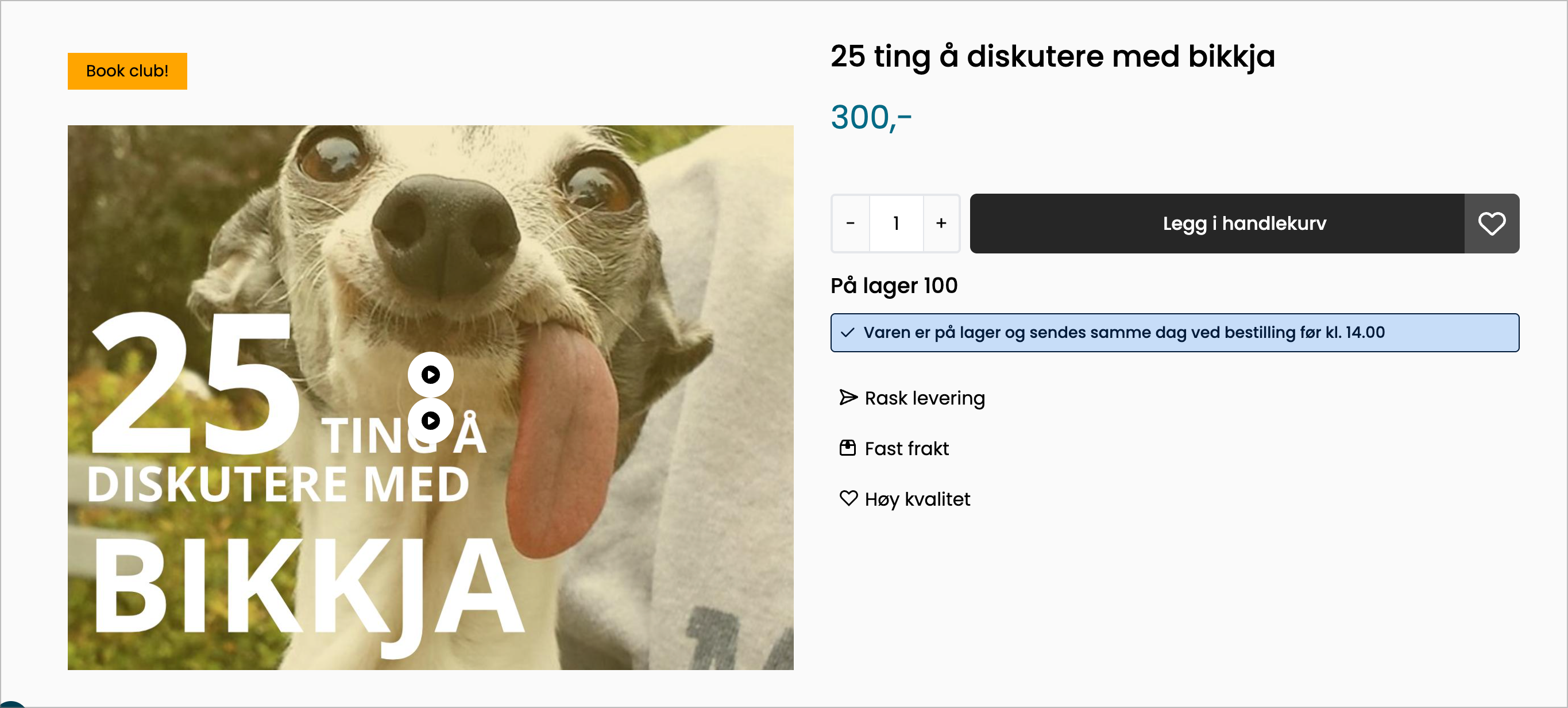
Example of customizationIf, for example, you want to change the "In stock" message from green to blue, it can be done in the following way.
.__global_stock_message.__global_in_stock_message {
        background: #c7ddf8;
        color: #031c3a;
        border-color: #031c3a;
    }
.__global_stock_message.__global_in_stock_message svg {
        fill: #031c3a;
    }