
Adjust offer
"Adjust offers" is the work list in the Offer Center. The entire product catalog is here, and you set the sales price directly in the table — enter a discount or a new price, see what it does to the margin, and save the row.
You can find it under Products → Offer Center → Adjust offers
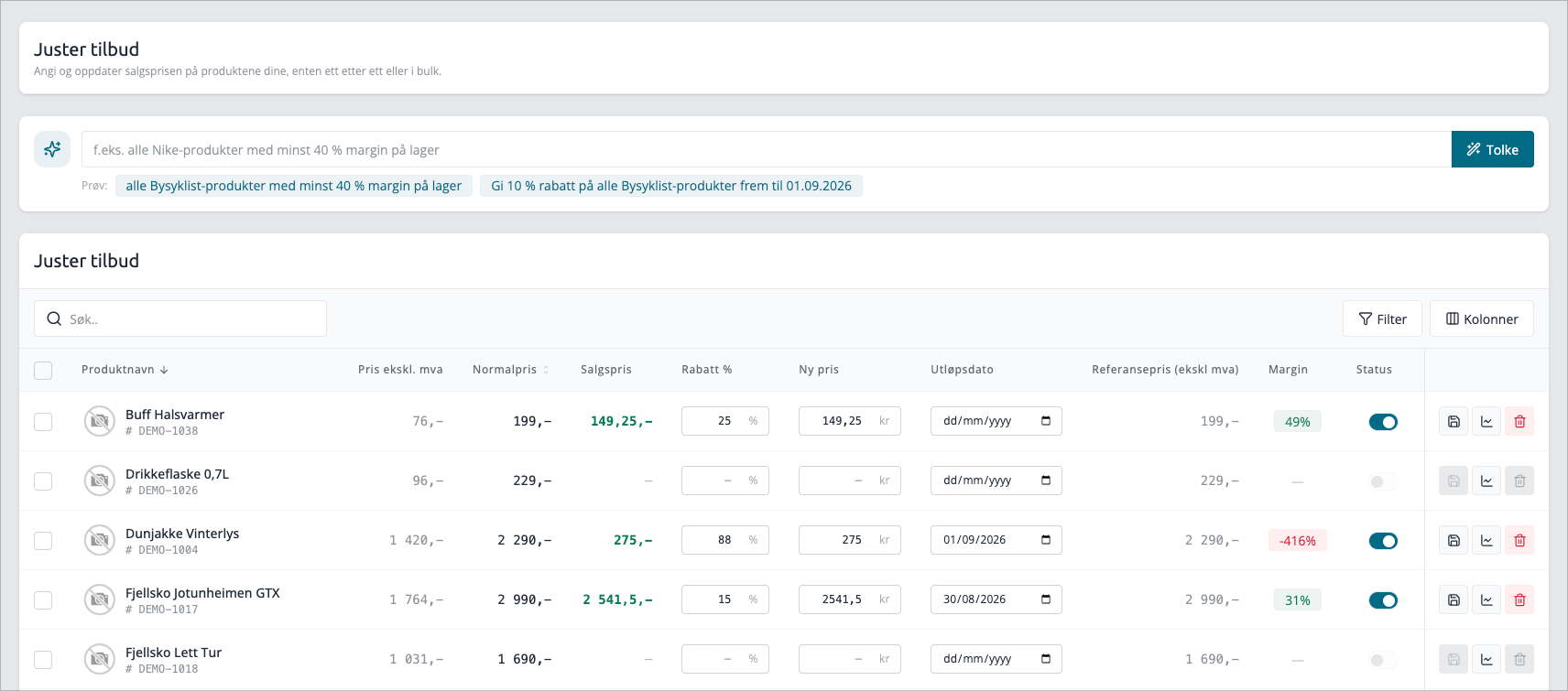
Setting a sales price for one product
- Search for the product, or filter your way to it.
- Enter a value in Discount % or in New price. The two are linked: if you enter 20 in Discount %, New price will be filled in for you, and vice versa.
- Set Expiration date if the offer should end automatically. Leave the field empty if it should continue until you stop it.
- Look at the Margin-label. It updates as you type, so you know what you're left with before saving.
- Click the save icon to the right of the row.
Everything before step 5 is just a preview in the browser. Nothing is saved, and nothing is changed in the store, until you click save.
The save button is gray until you have entered a price or a discount — if you hover over it, it says "Enter sales price or discount first". A date alone is not an offer.
Columns
Column | What it shows |
|---|---|
Product | Image, product name, and item number. The name opens the product in a new tab |
Price excl. VAT | Your purchase price. Always without VAT |
Normal price | The regular price of the product |
Sale price | The price the customer gets right now. Cannot be edited — it follows Discount % and New price |
Discount % | Enter the discount in percent |
New price | Enter the sale price in kroner |
Expiry date | Last day the offer is valid |
Reference price (excl. VAT) | The "Before" price, i.e., the lowest price in the last 30 days |
Stock | Quantity in stock. Hidden by default — turn it on under column options |
Margin | Margin with the sale price currently in the row |
Status | Turns the offer on and off without deleting it |
Save/Delete | Save the row, open price history, or remove the offer |
The product name opens in a new tab intentionally. This page is a worklist, and navigating in the same tab would discard all rows you have filled out but not saved.
Prices with or without VAT
The prices in the table follow the setting your store uses otherwise: if the store shows prices including VAT, you also enter prices including VAT here. Purchase price and margin are always without VAT, regardless — these are the numbers that matter for what you earn.
Row actions
At the far right of each row are three buttons. The column remains fixed when you scroll sideways.
- Save — saves the sale price and expiry date for the row.
- Price history — opens the price history for the product.
- Remove special — deletes the offer, so the product reverts to its normal price. You will be asked first. The button is gray for products that are not on offer.
Status—the switch turns off the offer without deleting it. The price and dates remain, so you can turn it on again later. The switch is gray for products that do not have an offer to turn on.
Filter and find
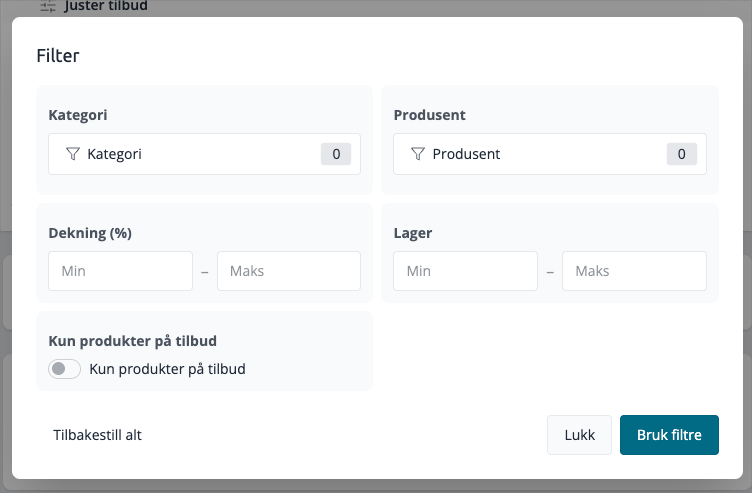
The search field searches product names and item numbers. If you need more, click Filter
Filter | What it does |
|---|---|
Category | Limit to one category. Check Include subcategories to include everything below it |
Manufacturer | Limit to one manufacturer |
Margin (%) | Set a from- and to-level for margin. Only applies to products on offer |
Stock | Set a from- and to-level for stock quantity |
Only products on offer | Hide everything that does not have a sale price |
You can also show, hide, and move columns, so the table displays what you are actually working with.
If you come here from the margin alert on the dashboard, the Margin filter is set for you.
Edit many products simultaneously
Check the rows you want to change, or use the checkbox at the top to select all results — including those on pages you haven't scrolled to. Then the action bar appears:
Action | What it does |
|---|---|
Set sale price | Opens the Bulk editor, where you set the price for all selected items simultaneously |
Activate | Activates the offers for the selected products |
Deactivate | Deactivates the offers, without deleting them |
Remove | Deletes the offers, so the products revert to normal price |
Revert | Reverts the selected products to the state they were in before the last bulk edit that affected them |
Set sale price is the main one: it has its own discount methods, rounding, and preview. See Setting sale price for many products
Products locked by a campaign
If a product is part of an active campaign, the campaign owns the price. The row is marked with Active campaign, and attempts to save, activate, deactivate, or remove will not go through — you will receive the message «No change — the product may be locked due to an active campaign.» This also applies when the product is part of a larger selection you are changing: the locked products are simply skipped, the rest go through.
If the price of such a product needs to be changed, you do it within the campaign.
Tips
- Discount % rounds to whole kroner when calculating New price. If you want a specific price point like 249, enter it in New price instead.
- The expiration date is inclusive: the offer is valid for the entire day you choose, until 23:59:59.
- Single changes you make here do not end up in the bulk editing log — it only logs bulk edits. If the change should be reversible later, do it through Set sales price