
Order Assistant v2
This article reviews how to set up the new order assistant, as well as a quick overview of order processing.
Introduction
The Order Assistant is designed for efficient order processing. With built-in quality control and barcode scanning, it ensures correct product delivery, for example, with the correct size. In addition, it supports automatic printing of shipping labels and integration with Tripletex. The assistant is responsive and works on tablets, mobile, and desktop.
First setup
Navigate to the order assistant by going to "Orders/Customers > Order assistant"
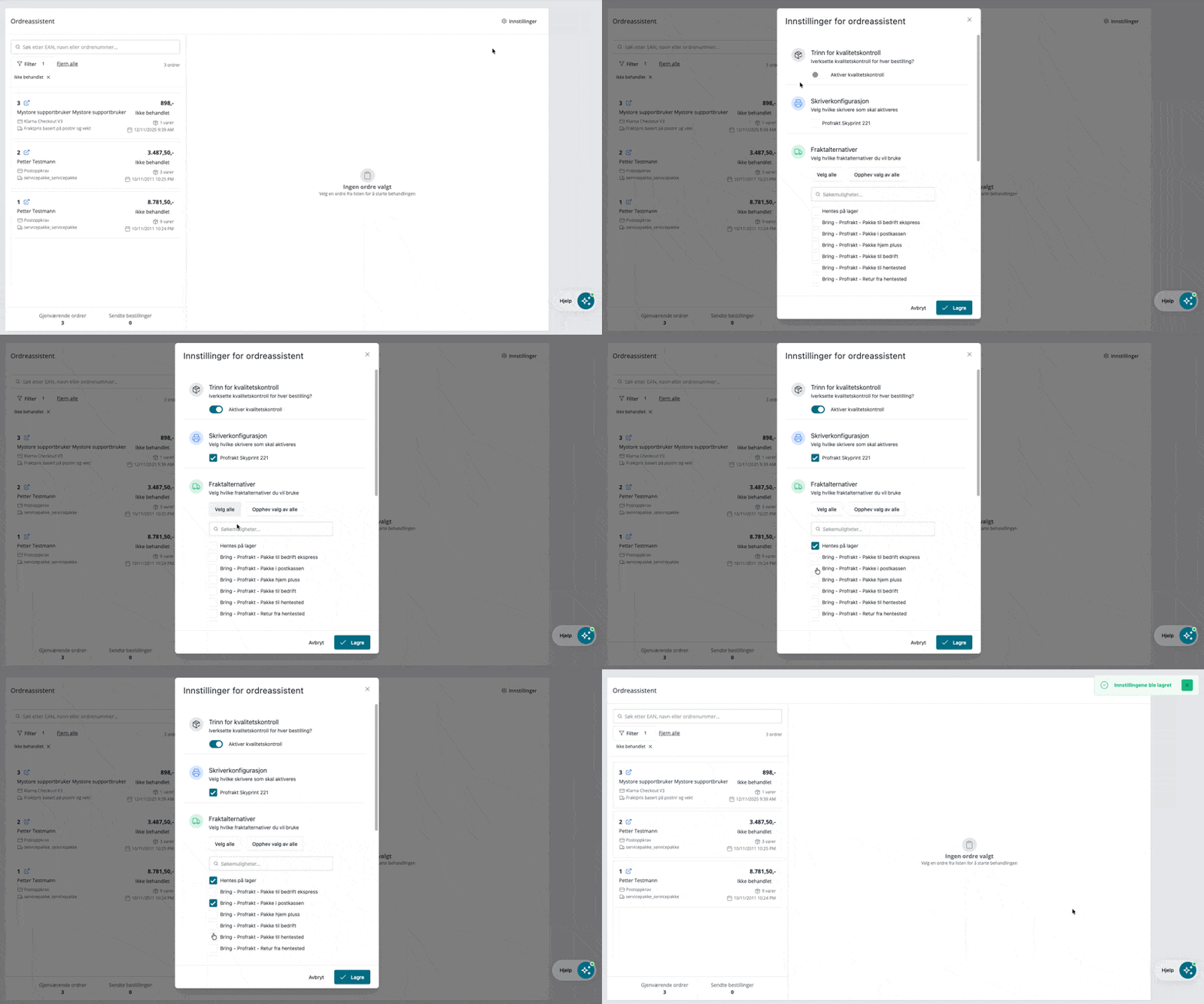
Get started easily by using "Settings" in the top right:
- Quality Control: Activate for extra control during packing. Products can be picked manually or by scanning. Useful for items with multiple variants, such as clothing. An error message is given if there is a discrepancy.
- Printer: Select printer for shipping labels for correct printing.
- Shipping Options: Select which shipping options from the agreement with Logistra or Profrakt should be available during order processing. Note that these are the shipping options from your shipping agreement, and are not linked to the shipping methods in your online store.
How to process orders
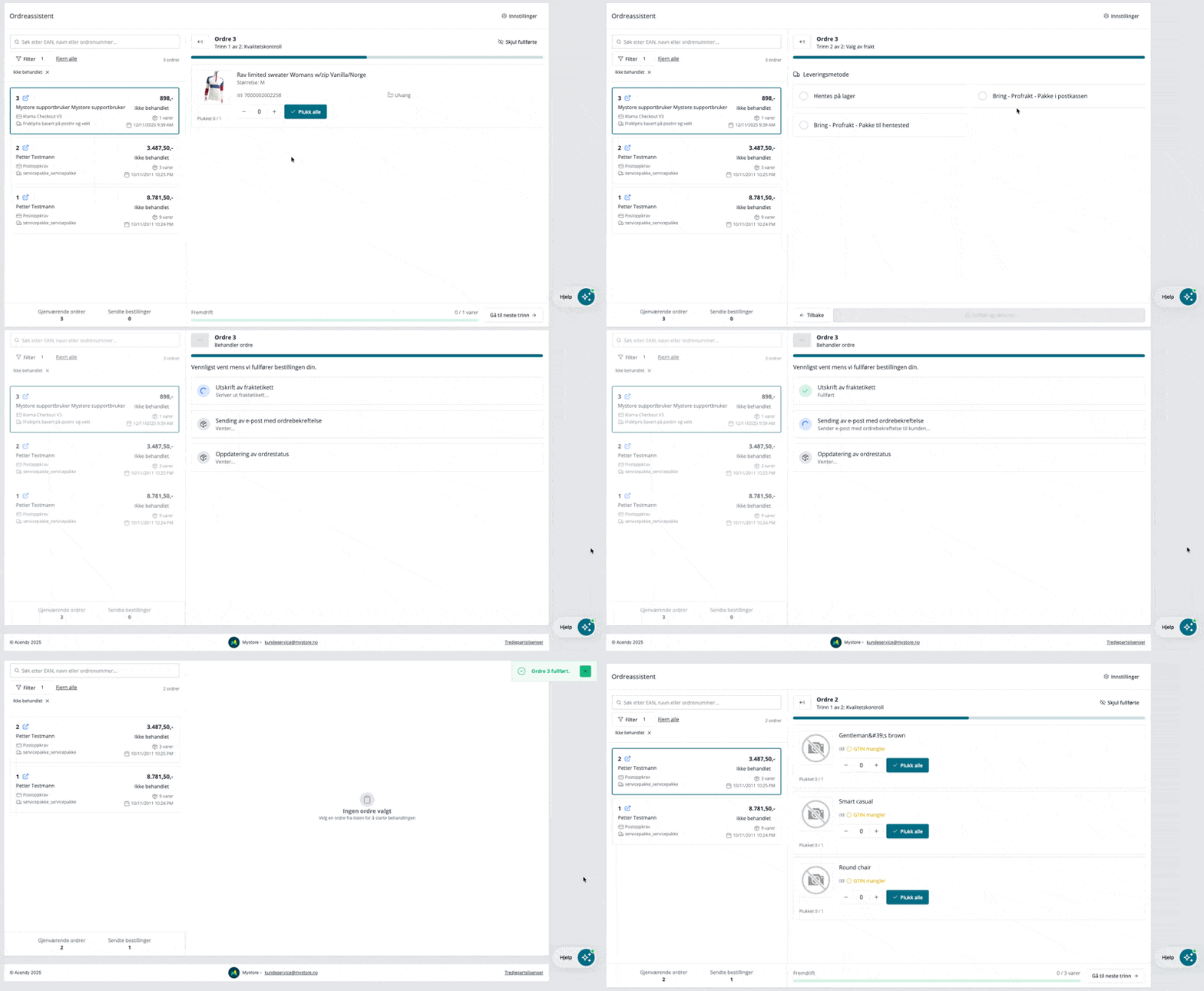
Once you have completed the setup, you can begin order processing:
- Find orders: Use the filter function, scan barcodes on the picking list, or search for specific orders.
- Process orders: Activate quality control, select shipping, and complete the order.
- Complete and print: Click "Complete and print" for automatic printing of shipping labels. Payment is activated via Klarna or Vipps, and the customer receives a notification by email.
- Next order: Proceed by clicking next in the list or scan the barcode on the picking list.
Keyboard navigation
Regular Tab works throughout (hold Option on macOS to tab between all focusable controls), and the following dedicated shortcuts are available:
Anywhere in an open order
- Escape — close the current order (any step). Focus returns to the sidebar; press ↓ from there to hop into the order list.
Sidebar order list
- ↑ / ↓ — cycle focus between orders
- Enter / Space — open the focused order
- → — jump focus into the currently open order's step content
Quality Assurance step
- ↑ / ↓ — cycle focus between product cards
- Space / Enter — pick one (same as clicking the card)
- Shift + Space / Shift + Enter — pick all (same as the "Pick all" button)
- Delete / Backspace — reset count for the focused card (same as unpick all)
- ← — move focus back to the open order in the sidebar (without closing it)
Shipping Selection step
- Enter — finish the order and print the shipping label
Frequently Asked Questions (FAQ)
- Is integration with Profrakt or Logistra required? The integration can be used without integration, but then you will only be able to select "Pick up in store" as a shipping option. Since one of the main values is to print shipping labels during order processing, it will be a much better user experience to use the assistant in combination with Profrakt or Logistra.
- Why don't I see a printer or shipping options in the settings? This may indicate that you do not have an agreement, or have incorrect integration keys for Profrakt or Logistra. Please contact our customer service if you are unsure.
- Why do I see shipping options but not a printer? If you see shipping options under settings but cannot select a printer, it may be because your printer is not connected to either Logistra's Direct Print or Profrakt's Skyprint. To be able to print shipping labels through the order assistant, it is necessary to have one of these connections.
- How does pick list scanning work? As long as the setting "Show barcode on pick list" is activated on the pick list module, you can easily scan this barcode to open the order in the order assistant. See how to activate barcode on pick list →
- Is integration with Tripletex required? Not a requirement, but orders are transferred to Tripletex if the integration is set up
- Does it cost anything to use the module? The order assistant is included in all price plans, and you do not pay anything extra for using the assistant. The cost for printing shipping labels is the same as with regular order processing.