
Overview and get started
Offer Center is where you set and change the sales price of products in your store — for one product or hundreds at the same time. You see what's on offer now, when each offer ends, what margin you're left with, and how a product's price has developed.
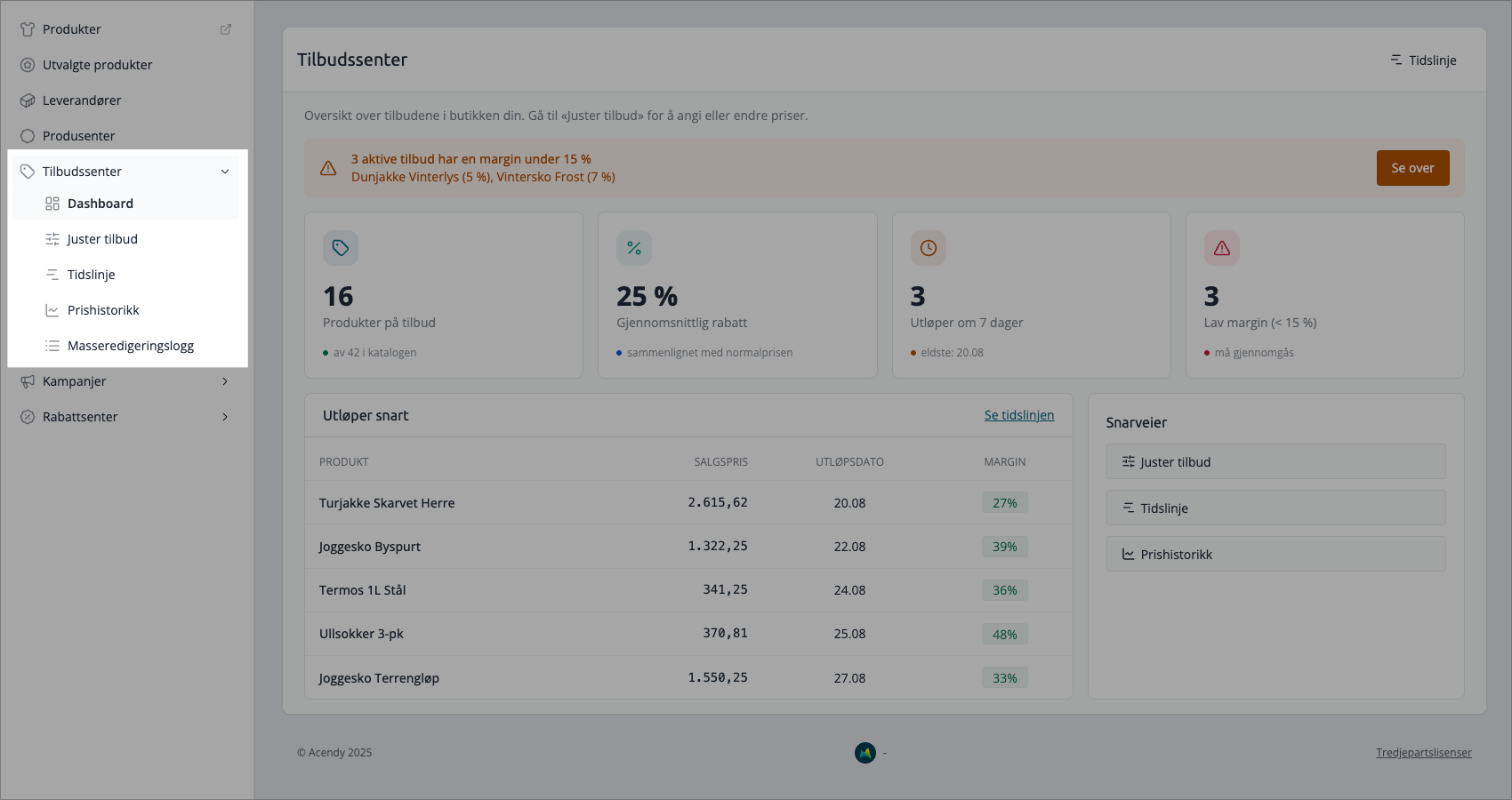
You can find it under Products → Offer Center
The five pages
Page | What you use it for |
|---|---|
Dashboard | Overview: how many products are on offer, what is the average discount, what expires soon, what has too low a margin |
Adjust Offers | The worklist. Here you set sales prices, one product at a time or several together |
Timeline | Calendar of when each offer runs, so you can see overlaps and gaps at a glance |
Price History | The price development for one product, the reference price ("before" price) and a log you can show during an audit |
Bulk Editor Log | All bulk edits you have made, with the option to revert them |
Offer Center, Campaign Center, and Discount Center
Three tools reduce prices in the store, and they do three different things.
Tool | What it does | Customer sees |
|---|---|---|
Offer Center | Sets the product's own sales price | The product's sales price, with the normal price struck through |
Campaign Center | Manages the price of products included in a campaign, with a common start and end | The product's campaign price |
Discount Center | Discount codes, quantity discounts, and "Buy X for Y" — calculated at checkout | The discount in the shopping cart, not on the product |
Offer Center and Campaign Center write to the same place, and campaigns have priority: if a product is part of a campaign that is currently running, the row is locked in the Offer Center, it is marked with Active campaign, and changes you try to save will not go through. You will receive the message «No change — the product may be locked due to an active campaign.» If the price is to be lowered, you do it in the campaign.
Dashboard
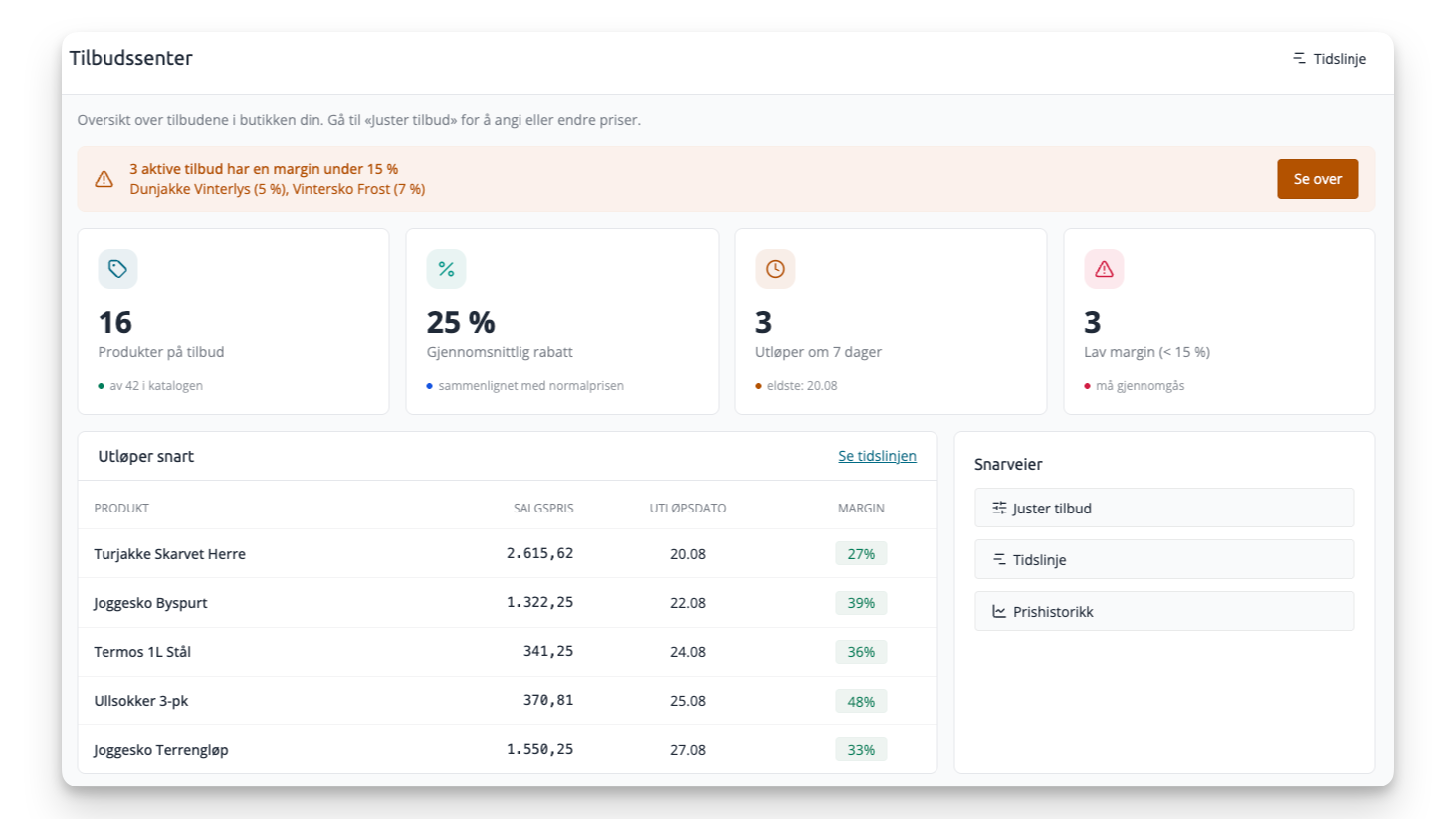
The front page of the Offer Center. Four cards at the top:
- Products on offer — how many products currently have an active sale price, and how many products the store has in total.
- Average discount — how much lower the offer prices are than the normal prices. This is weighted by monetary amount, not an average of percentages, so an expensive product with a 10% discount counts more than a cheap one with 50%.
- Expires in 7 days — how many offers expire during the week, with the date of the one that expires first.
- Low margin (< 15%) — how many active offers yield under 15% margin.
If you have products below the margin limit, a warning will also appear at the top with the first names and a Review-button. It takes you to «Adjust offers» with the margin filter already set, so you only see the products concerned.
Below the cards are Expires soon — the five offers with the nearest end date, with sale price and margin — and Shortcuts to the other pages.
How margin is calculated
Margin is what you are left with from the sale price after the purchase price: (sale price − purchase price) / sale price. Both figures are excluding VAT, regardless of whether the store otherwise displays prices with or without VAT.
The colors on the margin indicator are the same everywhere in the Offer Center:
Color | Margin |
|---|---|
Green | 25% or more |
Yellow | 10–24% |
Red | Under 10% |
If the product lacks a purchase price, the margin is shown as a dash. This is intentional — an an empty purchase price would otherwise result in a 100% margin on everything.
What you need access to
- Offer Center requires the same access as the old Offers page. If your administrator has restricted it to a specific group, the restriction also applies here, and the entire menu item disappears for those without access.
- Price History is included with the Smart subscription. On lower plans, you will see the page, but with an information card instead of the numbers.
- AI command line above «Adjust offers» is included with the Plus subscription.
If the Offer Center is not yet enabled
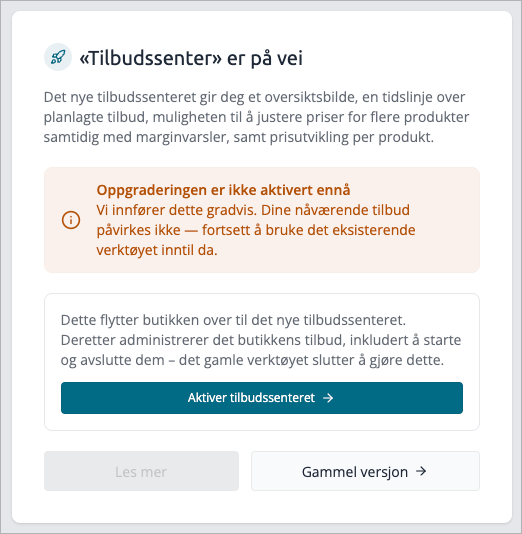
We are rolling out the Offer Center store by store. If it's not enabled for you yet, you will see a page called «Offer Center» is coming soon, with an Old version-button to the tool the store is using in the meantime. Your offers are not affected — they remain where they always have been, and the old tool works as before.
Only Mystore can enable the new center, because the transition also shifts the responsibility for starting and ending offers to the new system. Contact support if you want to expedite it for your store.
Tips
- If you only need to correct the price of one product, go directly to «Adjust offers» and search for it. The dashboard is for finding out what needs attention, not for making changes.
- The margin alert on the dashboard is worth checking before a campaign weekend. It catches products where a generous discount has eaten up the profit.