
Email Templates: Order Confirmation for Business Customers (B2B)
Order confirmation for business customers (B2B)
A separate order confirmation that you send only to your business customers. What distinguishes it from the regular confirmation is not its appearance — it's that you control who receives it with a rule. Customers with a company name on the order, or in the customer groups you select, will receive this one; all others will still receive the regular confirmation.
What it does
When someone places an order, the store normally sends the regular order confirmation. With the B2B order confirmation installed and enabled, an order that matches your rule will receive this version instead. All others will still receive the regular one.
The rule is the whole point of this template. It is the only order confirmation where you decide which customers receive it, instead of it going to everyone (regular confirmation) or being triggered by the order itself (like the pickup confirmation).
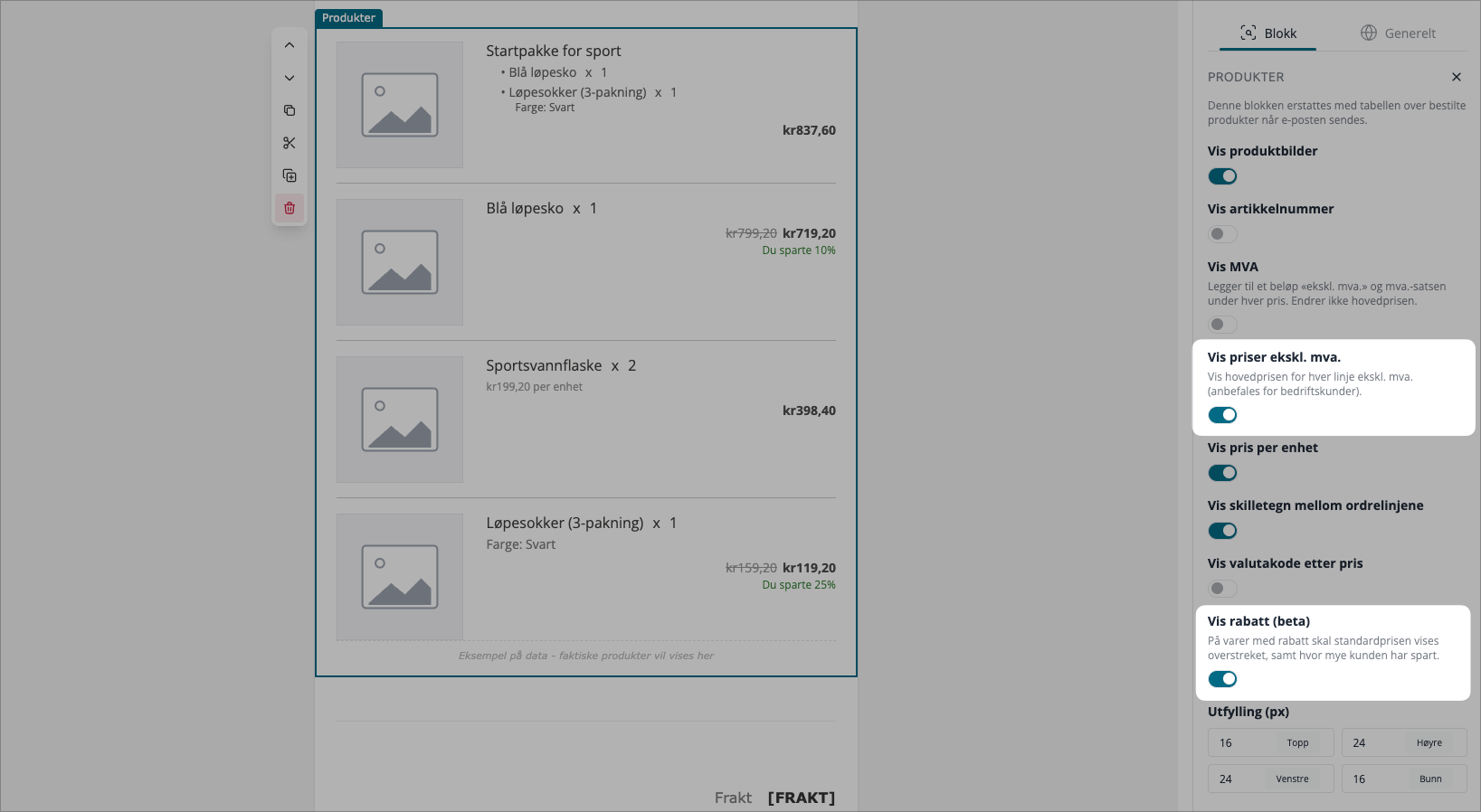
The B2B template comes with a couple of settings on the product block already enabled that suit business customers — prices without VAT, and a discount column on lines with a discount. These are not unique to B2B. They are standard block settings you can find on any email template, including the regular order confirmation; the B2B standard simply enables them for you. More about them below.
How to set it up
Three steps, in this order: install it, edit and publish it, and then enable it. Nothing reaches your customers before the last step.
1. Install it
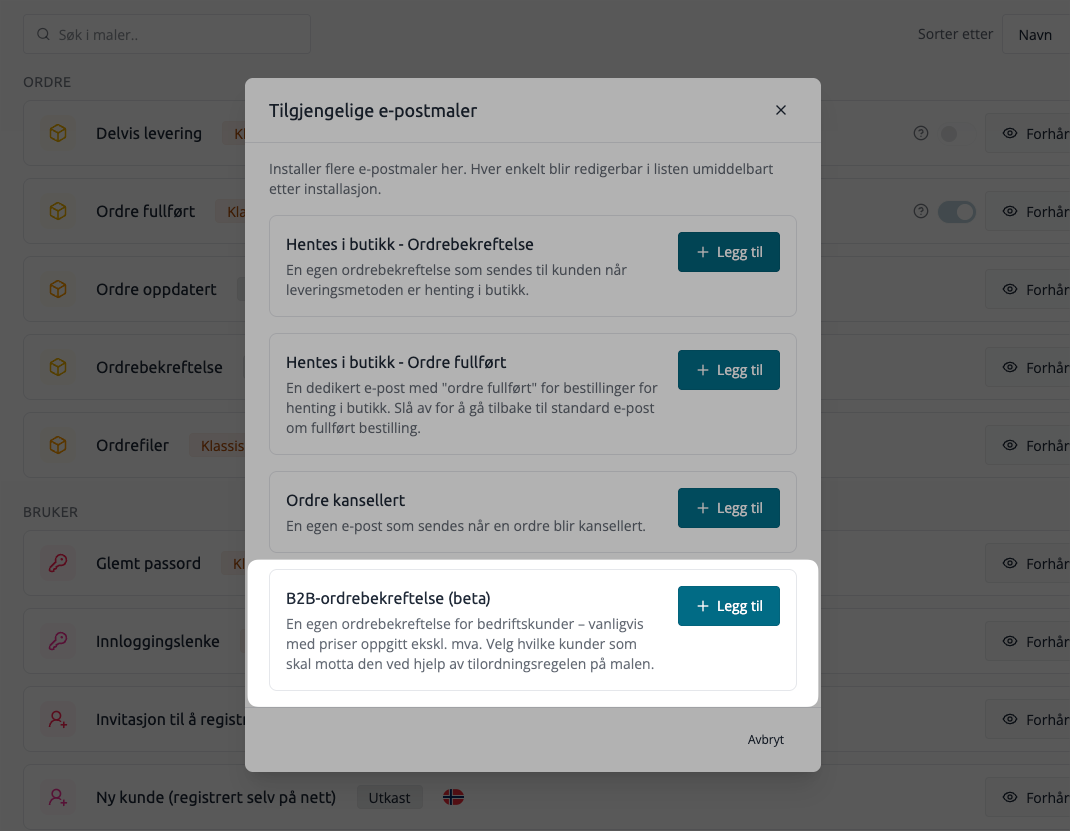
Go to Email → Templates in the control panel. Click Add template top right. In the list of available templates, find Order confirmation for business customers (B2B) and click Install
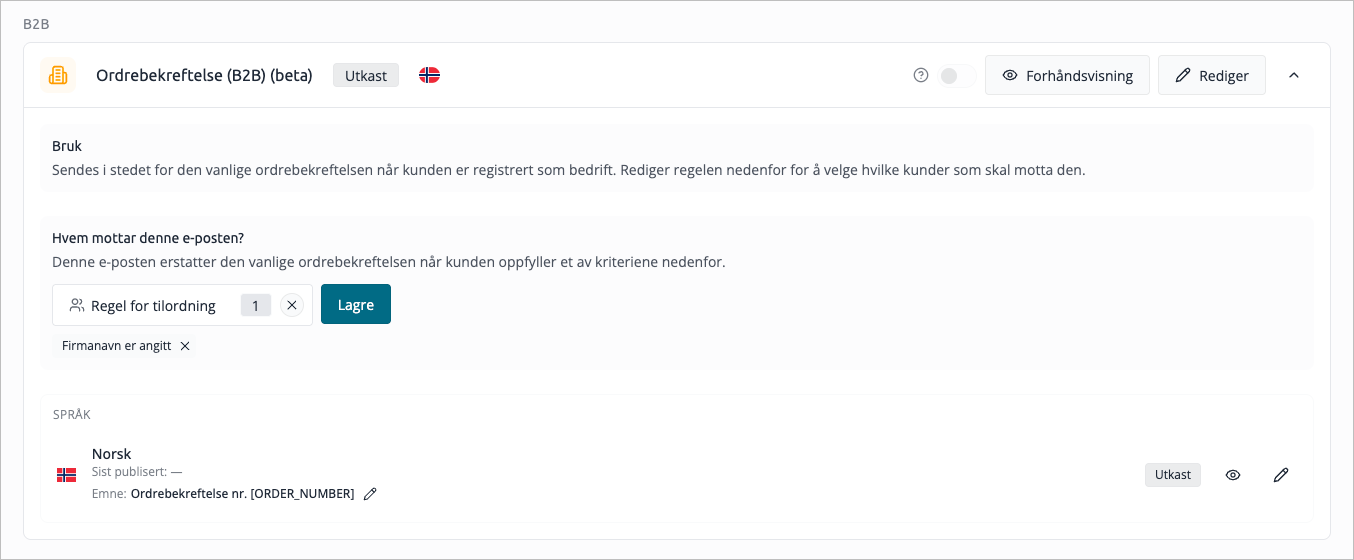
A new card appears in a B2B-section in the template list. It starts as a draft and is turned off — installing it doesn't change any emails yet.
2. Edit and publish it
The new template comes with a sensible default design, but you should go through it and make it your own. Open the template editor (the edit button on the card), adjust text, logo, colors, and product block as needed, and use Save and publish
Until you publish, the card shows a Draft-badge. It is the publication that makes your changes the active version customers receive.
3. Turn it on
Each template card has a switch: Activate this additional template. Turn it on. From this point, orders matching your rule will receive the B2B confirmation.
The switch is what actually sends the email. The reason it's separate from publishing: installing and editing a template should not silently change what your customers receive. You install, review, publish, and then turn it on, in that order.
If you try to turn it on while the template still has unpublished changes, you will be notified that outgoing emails will not include your latest changes until you publish.
Choosing who receives it
This is the part that is unique to the B2B confirmation. Open the B2B template card and look for the section Who receives this email?
The rule answers one question: which orders receive the B2B confirmation instead of the regular one? You build it from the menu Matching Rules, which offers:
Options | Matches when … |
|---|---|
Company name is specified | The order has a company name filled in. This is the simplest way to capture business orders, and it is the default option. |
A customer group (listed by name) | The customer belongs to that group. You see one entry per customer group you have set up. |
You can choose any combination. The check is an OR — an order matches if one of the selected options is true. If you select "Company name is specified" and the "Wholesaler" group, a customer receives the B2B email either if they filled in a company name or belong to the Wholesaler group.
Once you have selected, click Save. You will receive a confirmation that the rule was saved.
A couple of things worth knowing:
- Saving the rule takes effect immediately. It is not tied to the publishing step. The next order that matches will use the updated rule.
- By default, only "Company name is specified" is selected. It is set up when you install, so the feature has a useful starting point. You can expand to customer groups whenever you want.
- Deleted groups clean up after themselves. If you remove a customer group later, it will quietly drop out of the rule the next time you save.
Product display settings
The B2B confirmation is built from the same blocks as all other email templates. It comes with two settings on the product block already turned on because they suit business customers, but these are completely standard settings — you can find them on any template, and you turn them off or on in the same way in the editor:
Setting | What it does |
|---|---|
Show prices without VAT | The main price on each product line shows the amount without VAT instead of with VAT. Recommended for business customers. The VAT specification setting is a separate matter and is not affected. |
Show discount (beta) | On lines with a discount, the standard price is shown struck through, plus a line telling the customer how much they saved. Full-price lines show nothing extra. |
They are enabled by default in the B2B template and disabled by default otherwise, but nothing prevents you from enabling them on the regular order confirmation as well, or disabling them here.
A note on how the saving is calculated: it compares the standard catalog price (before any customer group or reseller price) against what the customer actually paid. Since the paid price already reflects group prices, offer prices, and promotions, this captures all per-line discounts at once. Discounts that apply to the entire order — discount codes, order discounts, quantity tiers across the shopping cart — are not per-line, so they are not shown in the product table.
How it relates to your other confirmations
Your store can have several variants of order confirmation installed simultaneously — the regular one, a pickup variant, and this B2B variant. This is how the store determines which one is sent when an order comes in:
- If the order qualifies for "B2B"-confirmation (it is enabled and matches your rule), it is sent.
- Otherwise, if it is a "pickup order" in store and you have set up the pickup confirmation, it is sent.
- Otherwise, the "regular" order confirmation is sent.
B2B takes precedence over pickup. So a business customer who places a pickup order in-store still receives the B2B confirmation, not the pickup variant.
There is also a safety net: if the B2B template cannot be found for some reason (for example, it was deleted but remained enabled), the store falls back to the regular confirmation, so a customer never receives an empty email.
Tips
- Install and edit freely without worrying about customers. Nothing goes out until you flip the switch, so take your time to get the design and rule right first.
- Publish after each design change. The switch controls whether the email is sent at all; publishing controls whether your latest changes are the version that is sent. A change you saved but did not publish will not reach customers.
- Test with a real order. Once active, place a test order that matches your rule (easiest: one with a company name) and confirm that the correct email arrives with prices excluding VAT.
- Multi-language stores: the template has one variant per language, just like your other email templates. Edit and publish each one you use.