
Suppliers — overview and setup
Suppliers — overview and setup
Suppliers are those from whom you purchase goods — it can be a distributor, a wholesaler, or the manufacturer themselves. You manage your suppliers under Products → Suppliers in the control panel.
Supplier and manufacturer — what's the difference?
A manufacturer makes the product. A supplier is the one you buy the product from. Sometimes they are the same entity — for example, if you buy directly from the brand — but often you buy from a distributor who carries multiple brands.
Supplier | Manufacturer | |
|---|---|---|
Makes the product? | No (usually) | Yes |
Sells the product to you? | Yes | Rarely |
Visible to customers? | No | Yes (optional) |
Used in purchase orders? | Yes | No directly |
You link suppliers to manufacturers in the supplier card. This allows the system to know which supplier you are ordering from when you create a purchase order for a specific brand.
Supplier list
On the overview page, you see all your suppliers with name, currency, contact person, and email. You can search by supplier name and delete multiple suppliers at once using the checkboxes on the left.
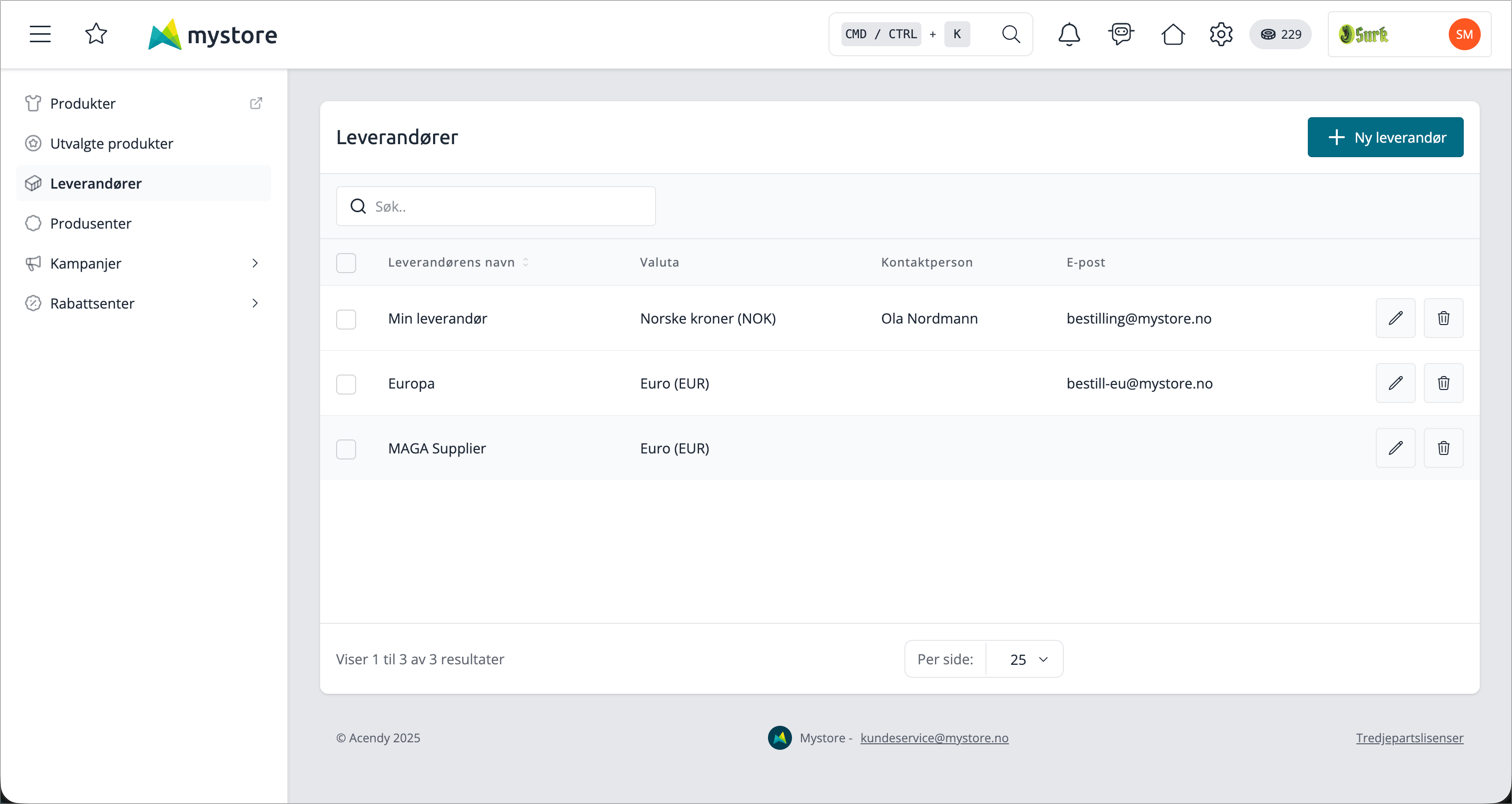
Create or edit a supplier
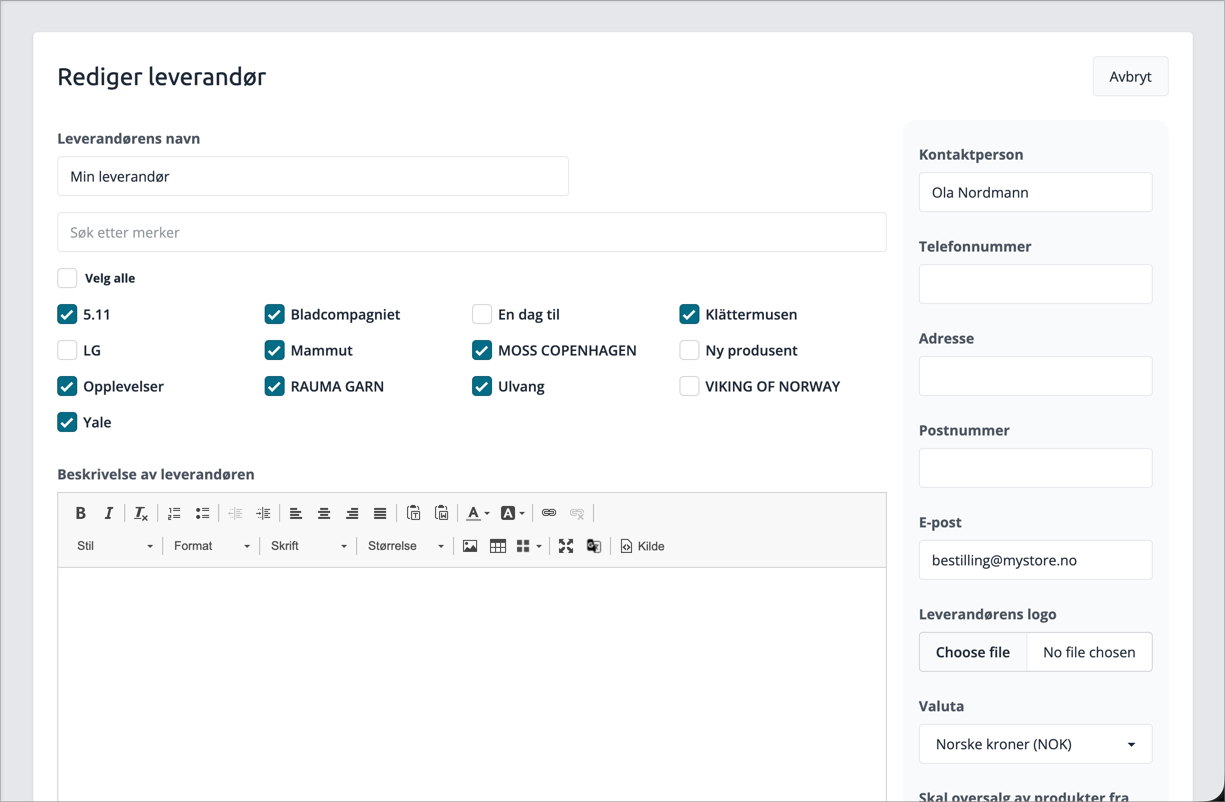
Click New supplier to create, or the edit icon on an existing one. The form has these fields:
Basic Information
Field | Description |
|---|---|
Name | Supplier's name. Shown in purchase orders and on the product card. Max 32 characters. |
Description | Optional internal description. Supports formatting. |
Contact Person | Name of the contact person at the supplier. |
Phone Number | Contact number. |
The email address to which purchase orders are sent. | |
Address | Supplier's postal address. |
Postal Code | Postal code. |
Logo
Upload the supplier's logo. Max 2 MB. The image is used internally and is not displayed in the webshop.
Currency
Select the currency in which the supplier invoices. This is used in the purchasing module to display the cost price in the correct currency. Currency is mandatory.
Overselling
The setting "Should overselling of products from this supplier be backordered" controls whether products from the supplier can be sold even if the stock level is 0 or lower.
- Yes — overselling is allowed for all products from this supplier. This setting overrides stock groups and general stock configuration.
- No — no overselling, unless the product is in a stock group that allows it.
If you use Advanced Stock Management and want stock groups to control overselling per product, you must set this to No for the supplier.
Associated manufacturers
Here you select which manufacturers (brands) the supplier deals with. Search in the field and check the relevant ones. A supplier can have many manufacturers.
This is the link that allows the purchasing module to automatically suggest the correct supplier when you create a purchase order based on the manufacturer.
Recommendation: Link each manufacturer to only one supplier. If a manufacturer is linked to several, the system will notify you on the product card and ask you to manually select a supplier when purchasing.
Link to products
Products are linked to a supplier via the product card (Products → Products → select product → Suppliers). The supplier link is necessary to be able to add the product to a purchase order.
If a product has a manufacturer linked to multiple suppliers, a warning will be displayed on the product card with a list of suppliers, allowing you to choose or clean up.
Delete a supplier
You can delete individual suppliers using the trash can icon in the table, or delete multiple at once using the checkboxes and Delete selected. A confirmation dialog will be displayed before the deletion is performed.
The supplier is removed from all manufacturers it is linked to. Products linked to the supplier do not retain the link — they lose their supplier association.