
Block: Subcategories
With "Subcategories" you can automatically display all subcategories of the current category at the top of the category page.
In the example below, we see how the "Clothing" category displays direct subcategories. If we had navigated further into the "Women" category, we would have seen its subcategories.
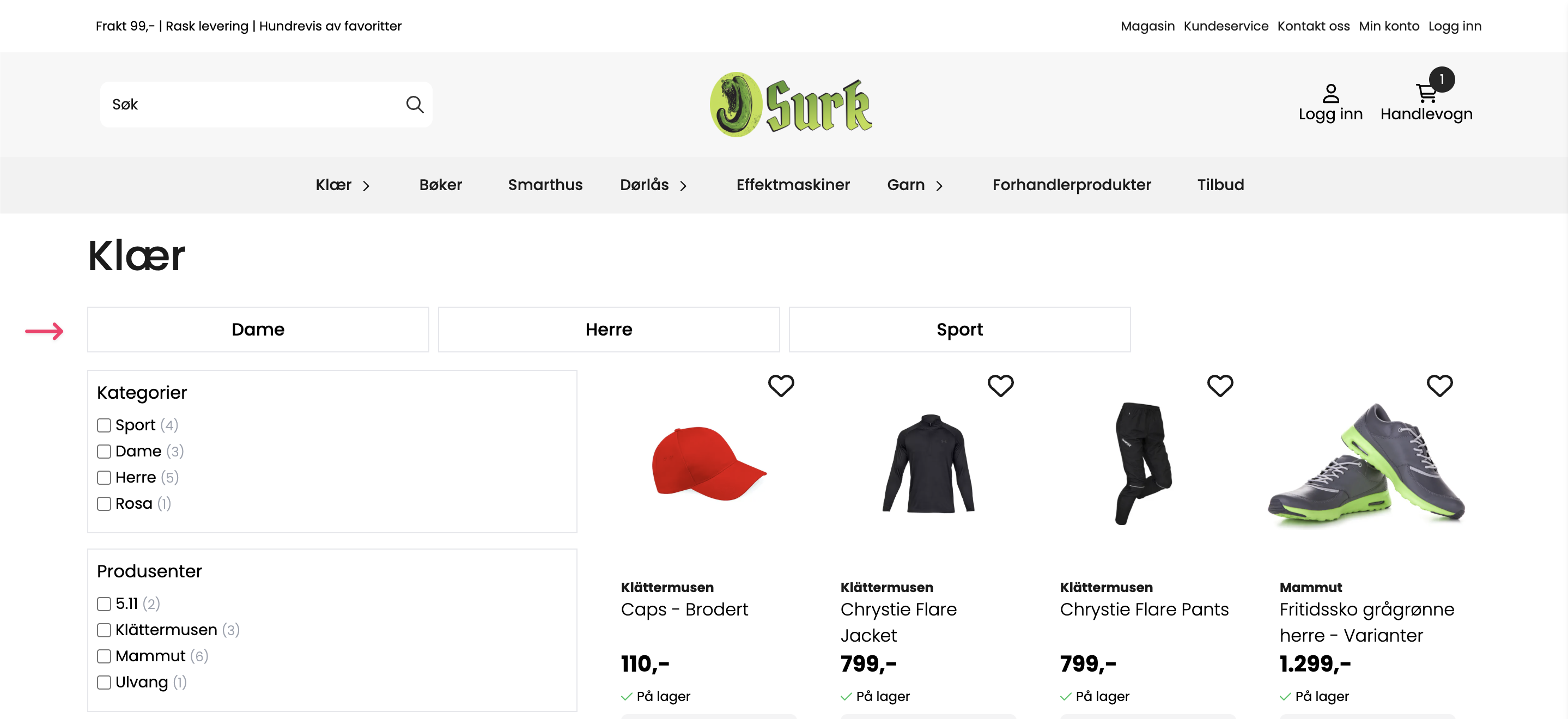
How to add the block
- Navigate to the design builder
- Open the template for "Category page"
- In the "Product section (Productgrid)" section, add the block "Subcategories"
Ensure that the "Subcategories" block is placed above the "Products in grid" block. Alternatively, you can have a separate "Product section" that only contains "Subcategories". That is, one section containing subcategories and one section containing the products.
Subcategories are not displayed
If the subcategories are not displayed in the design builder, try the following:
- Save the design and reload the design builder.
- Make sure you are previewing a category that has subcategories.
Customize the appearance of subcategories
After the block has been added, you can make simple changes to its appearance.
Click the pencil button to edit the settings. From here you can change font size, font weight, as well as font color, background color, and add a border. As with all other blocks, you can also change column layout, margin, padding, and add your own CSS classes.
Add category images
If you wish to display images for the subcategories, this will happen automatically when a category has an image. Note that the image will automatically take up the full width of the subcategory box. Some adjustment of the category image may be necessary.
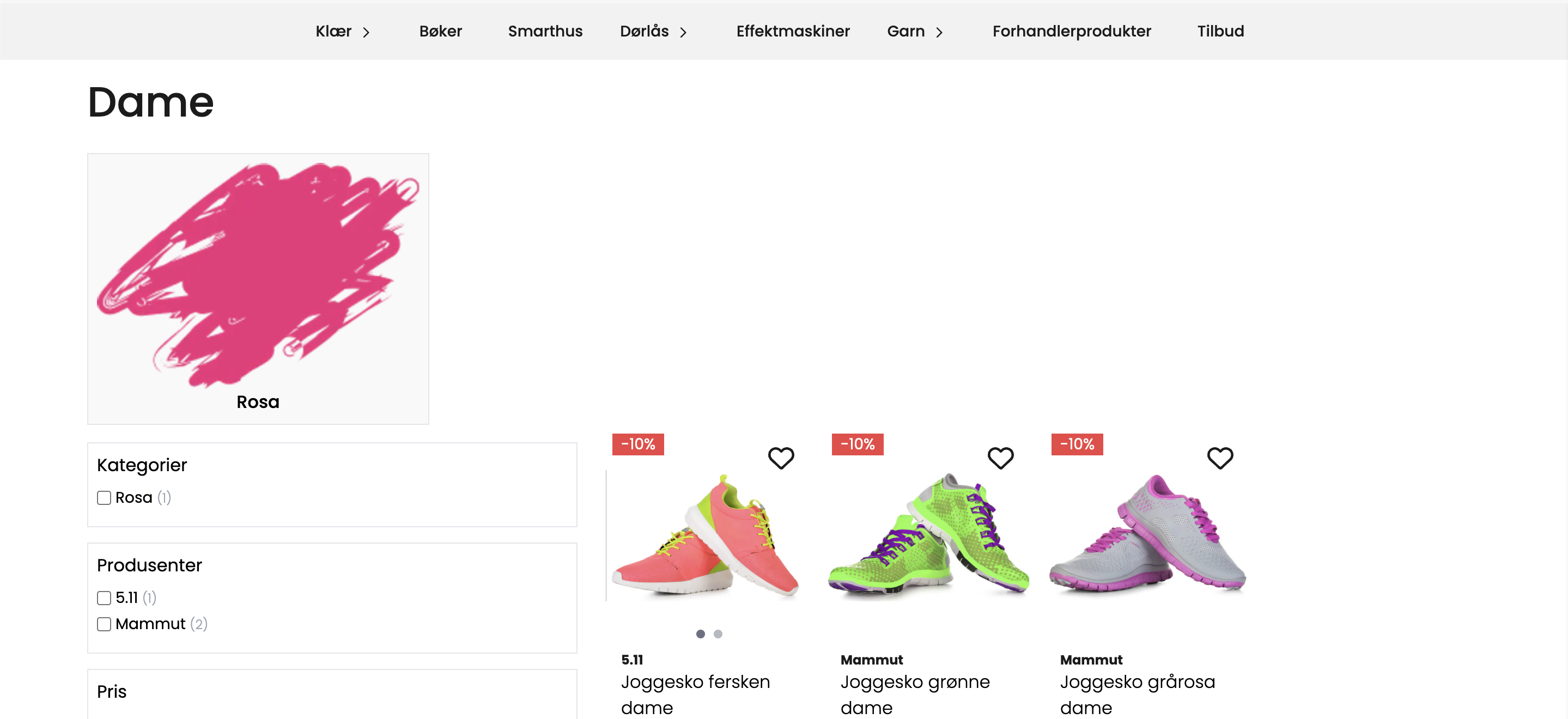
How to add category images:
- In your control panel, navigate to
Products > Products - In the left menu, find the category you want to add an image to, and click the pencil button to edit.
- Under "Settings" in the window that opens, the image can be uploaded.
Allow products in category with subcategory
By default in Acendy, you can only have products in categories that do not have subcategories. This means you must choose one or the other. This can be solved using the extension "Allow products in main categories
If you want to display both products and subcategories in one and the same category, the extension above must be activated.