
Bulk editor log and reset
Every time you set a special price on multiple products simultaneously, it is saved as a bulk editor you can revert to. The log shows what was changed, when, and by whom — and you can undo the entire change or just some of the products.
You can find it under Products → Offer Center → Bulk Editor Log
What is logged
Is logged | Is not logged |
|---|---|
“Set Sale Price” on multiple products | Single changes you save row by row in “Adjust Offer” |
Bulk editor changes started from the AI command line | “Remove Special” on one row |
Resets — they are logged as new changes themselves | Turning the status switch on and off on one row |
If a change should be reversible later, do it through Set Sale Price, even when it's just a few products.
Overview
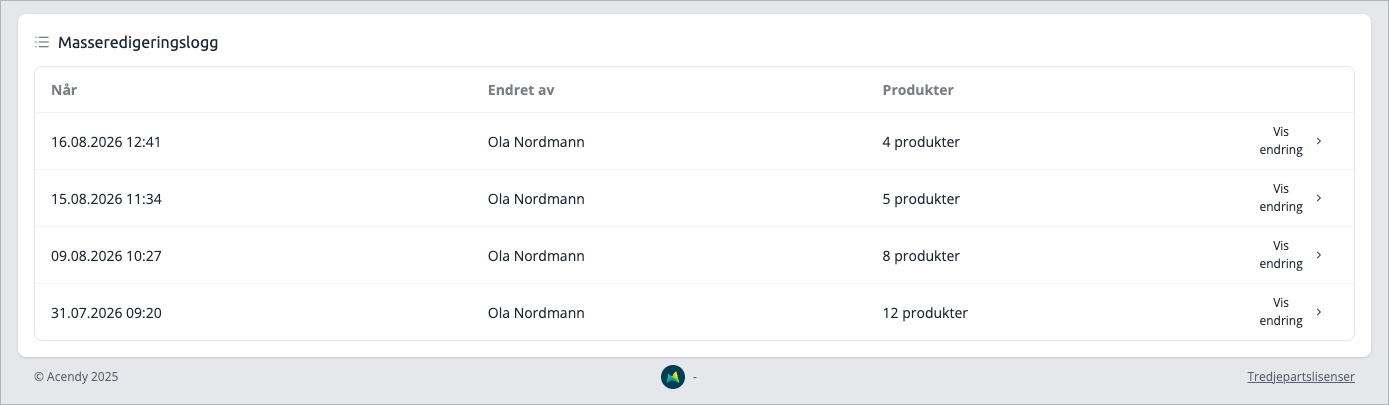
One row per bulk editor change, newest first:
Column | Content |
|---|---|
When | Date and time |
Changed by | Who made it |
Products | How many products the change affected |
Show change | Opens the details |
The detail page
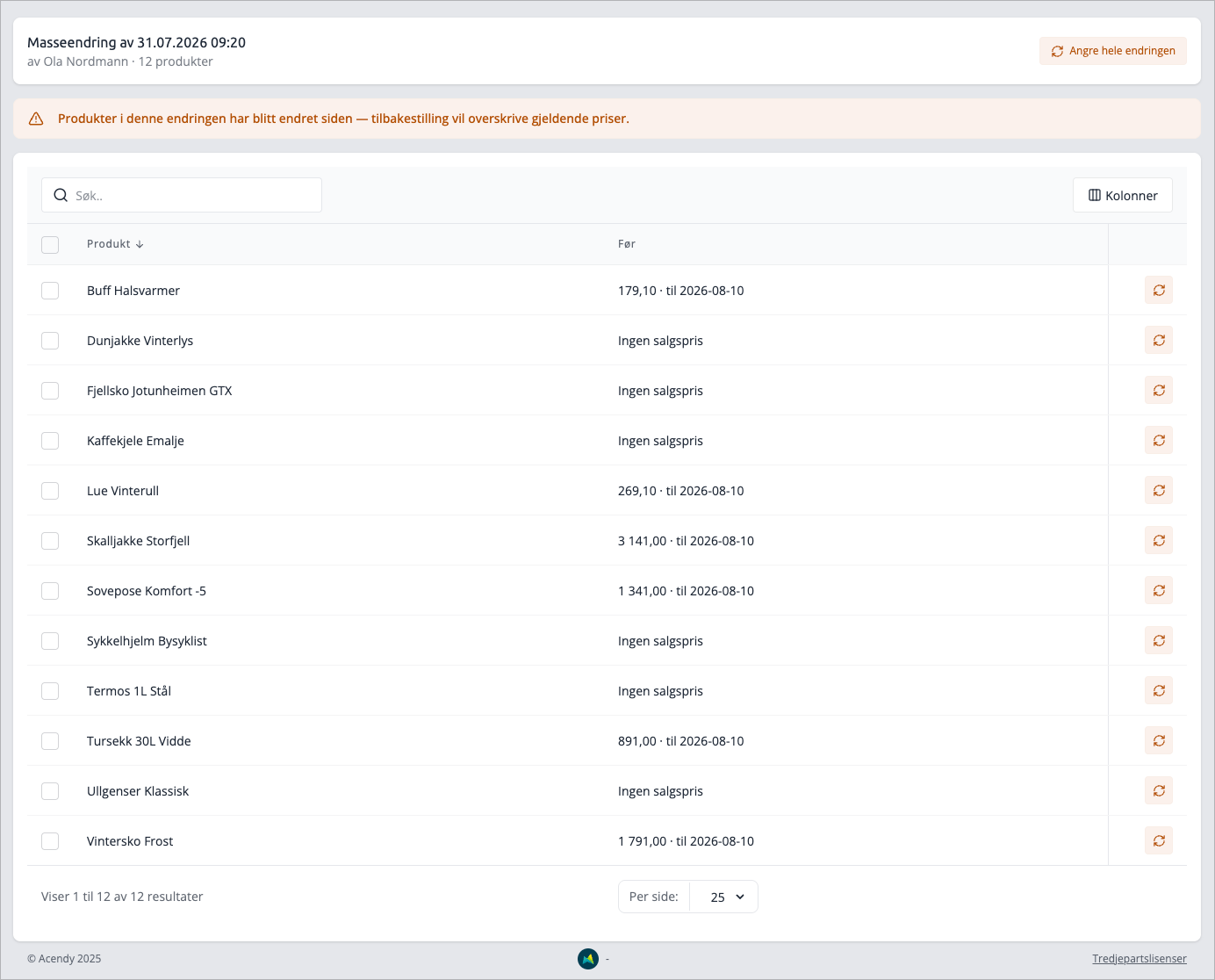
Click Show change to see which products were included. The table shows the product name and Before — what offer the product had just before the change. If it had no offer, it says “No sale price”.
From here, you have three ways to reset:
- Reset on a single row — only that product.
- Reset selected — check multiple rows, and take them together.
- Undo the entire change — all products in the change at once.
All three will ask you first.
How resetting works
Resetting reverts the product to its state in the Before column. If it had no sale price, the offer is removed. If it had a sale price with an end date, it will return.
Three things are worth knowing:
- Nothing is deleted. A reset is saved as a new bulk change in the log. This means you can undo the undo, using the exact same method.
- All changes can be reset, even old ones. There is no block after a certain time.
- Therefore, a reset can overwrite newer prices. If you have changed the price of a product after the change you are now undoing, the newer price will be lost. If this happens, you will receive a warning on the detail page that resetting will overwrite current prices, and it will also be in the confirmation. The warning does not stop you — it is there so you know what you are doing.
Products that are skipped
Products locked by an active campaign are not reset, because the campaign owns their price. If the change only affected such products, you will receive the message «Nothing was reset — the products may be locked by an active campaign.»
About the reference price when resetting
The offer itself is restored exactly. The reference price, however, is recalculated according to the usual rules, based on the price history as it currently stands — it is not reset to what it was before the change. For a product that has gone through several price rounds, the 'before' price may therefore be different from what it was. Check the product's price history if this is important to you.
«Go back» from the product list
In Adjust offer, the action Go back, is found in the action bar. It does the same, but from the other end: it reverts each selected product to the state it had before the last, Bulk editor that affected it. Use it when you know which products are wrong, but not which change caused it.
Tips
- If you have set an offer for a large category and regret it, «Undo entire change» is faster and safer than picking the products apart yourself.
- Because individual changes are not logged, the Before-column may be outdated if someone has manually corrected a product after the Bulk editor. The overwrite warning does not catch this type of change, so check the product's price before resetting something old.